There’s going to be an emergency PHP release made in just over 2 hours. It’s to address a critical security bug.
I’m not sure how long it’ll be before Ubuntu updates, but I will preload a bunch of posts here and on inphotos.org using WP Super Cache and turn off PHP until it’s updated. The files will be served by Apache’s mod_rewrite, so no PHP involved at all. Uncached pages won’t be so lucky, but at least some pages will still be live.
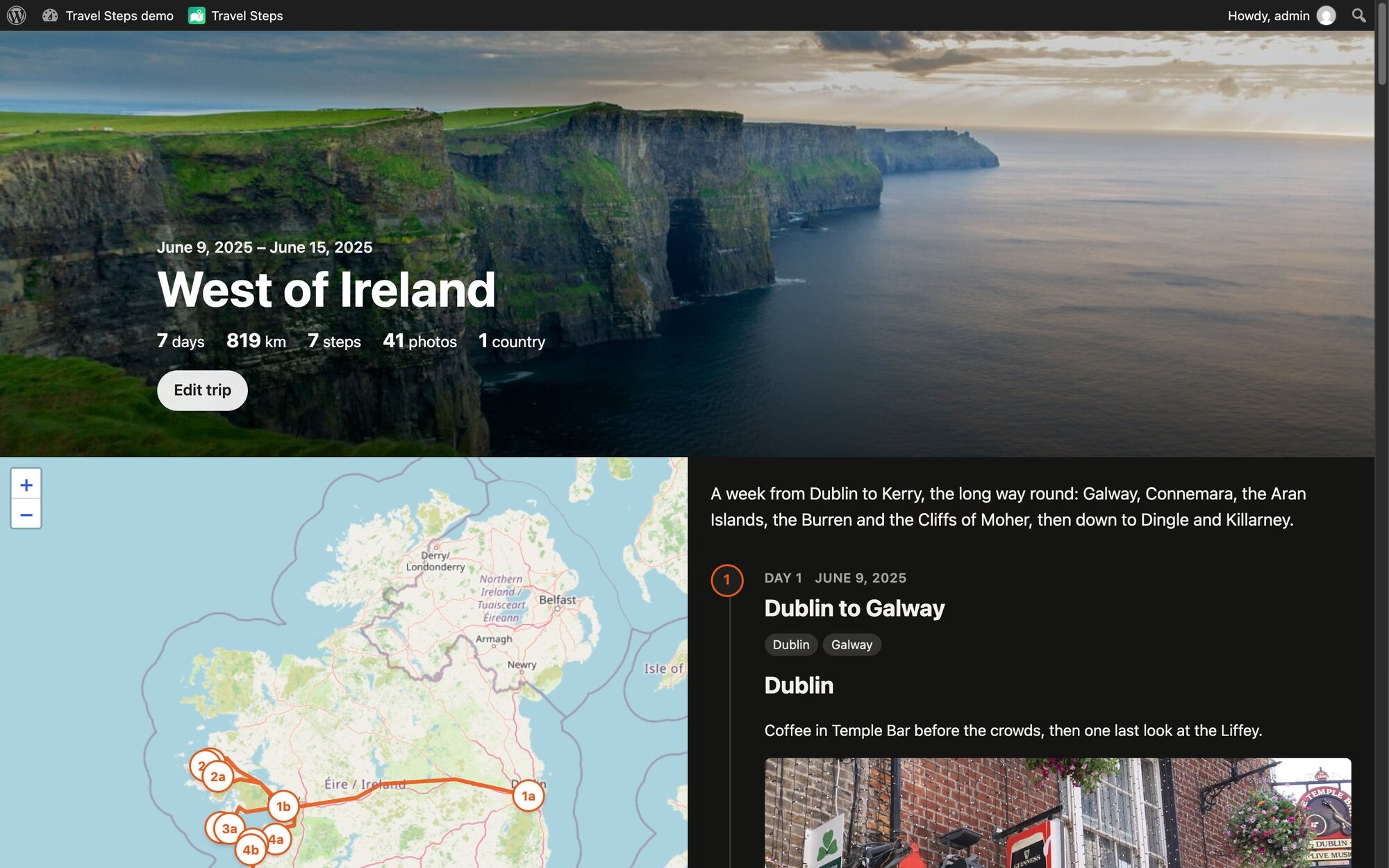
I made a WordPress plugin for my holidays. It’s called Travel Steps, and it turns a trip into a page with a map down one side and the story of each day down the other.
Every photo I take ends up in Immich, on my own server. My phone sends where I’ve been to Dawarich, on the same server. So after a trip I have all the photos and the whole route, sitting in two apps on my private server. The travel apps that make nice trip pages want your photos and your location on their servers. I’d rather keep them on mine.
How it works
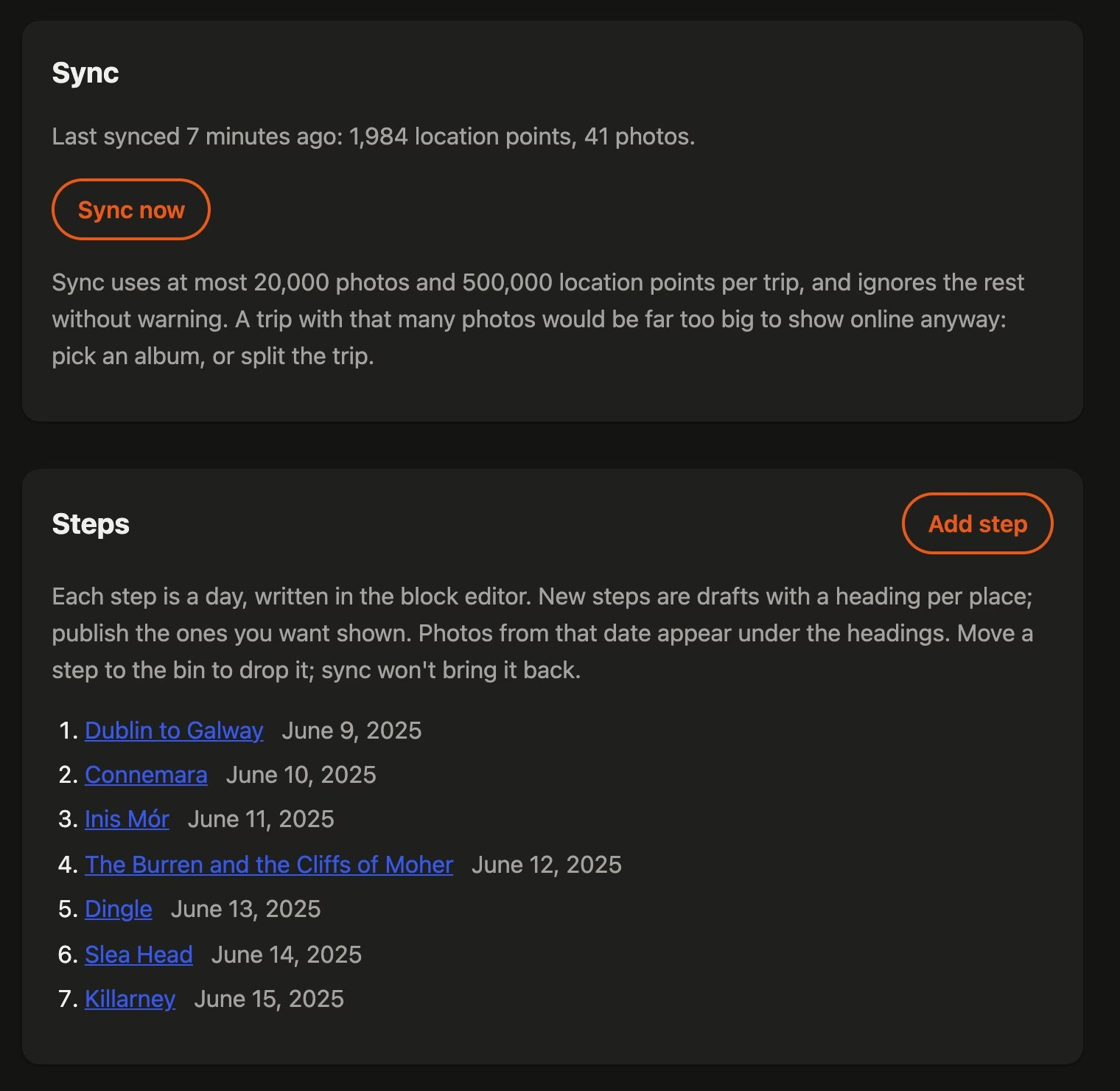
You make a trip, give it a first and last day, and press Sync. Travel Steps asks Dawarich for your location over those days, and Immich for the photos you took. You can pick one Immich album instead. If you don’t use Immich at all, upload the photos to the trip. It will detect the start and end dates from the uploaded photos, or an Immich album too.
One sync, and a step for each day.
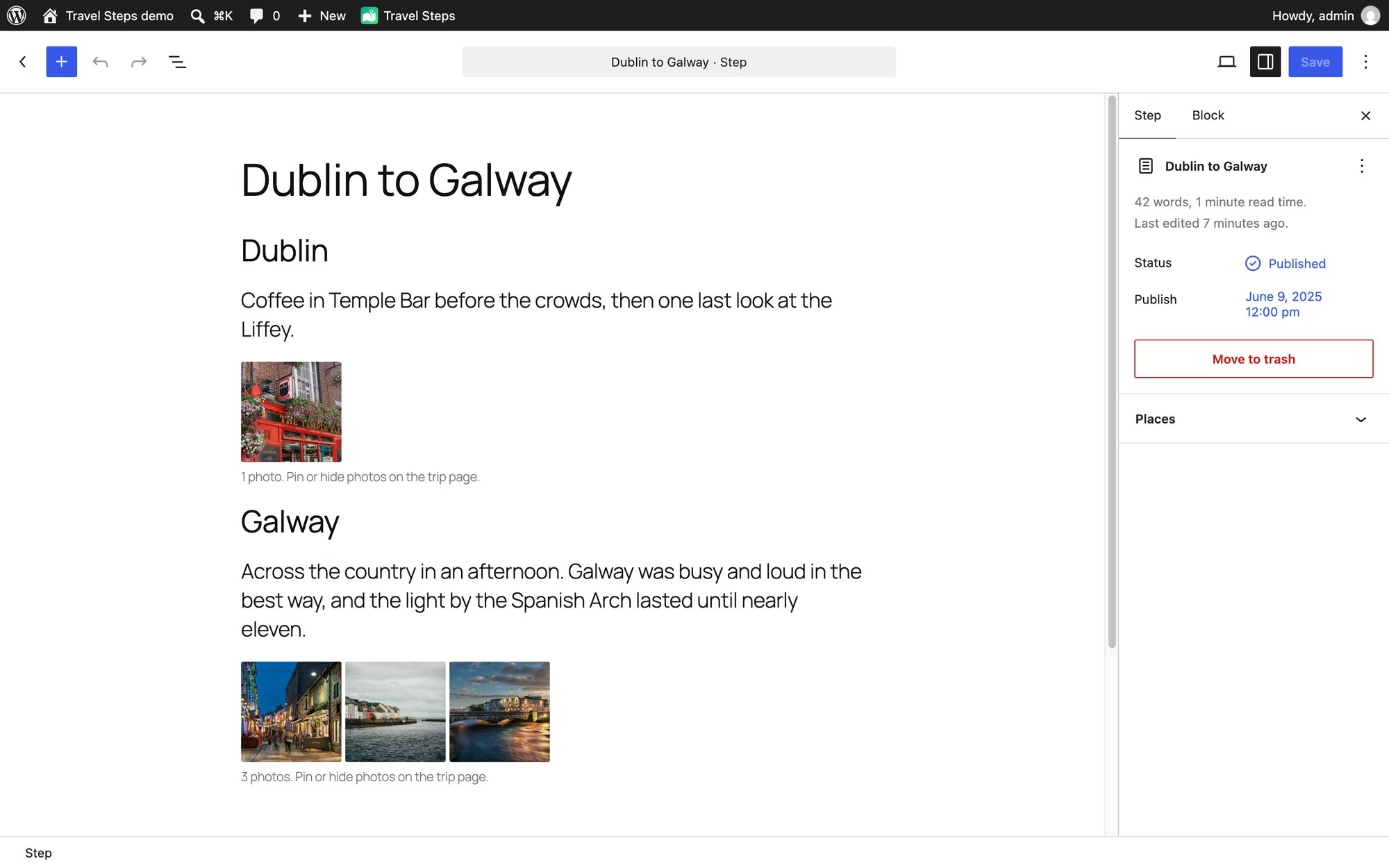
Sync makes a draft post for every day that has favourite photos. Each one is a “step”. It splits the day into places too. A new place starts when a favourite is more than 2 km from the last one and in a different town. Each place gets a heading and a block of photos, so all that’s left is the writing.
Each day is a post you write in the block editor. The photos under each heading come straight from Immich.
Place names come from GeoNames data that ships with the plugin, so naming a town doesn’t send your location anywhere. Immich only names a place from a photo’s own GPS. A photo from a camera without GPS gets placed from your Dawarich history instead, and named the same way.
Publish the days you want people to see. Drafts stay private, and so do their photos.
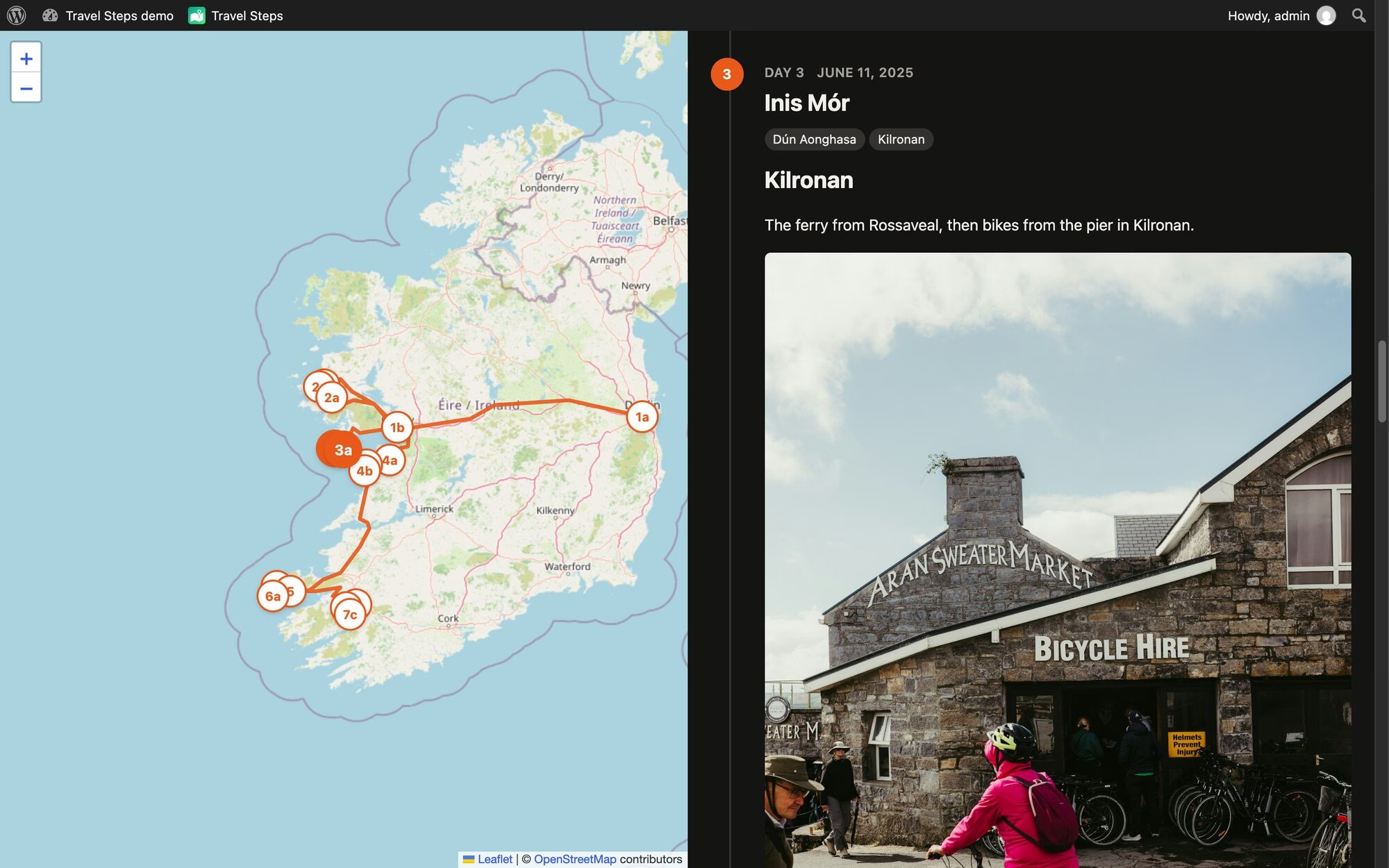
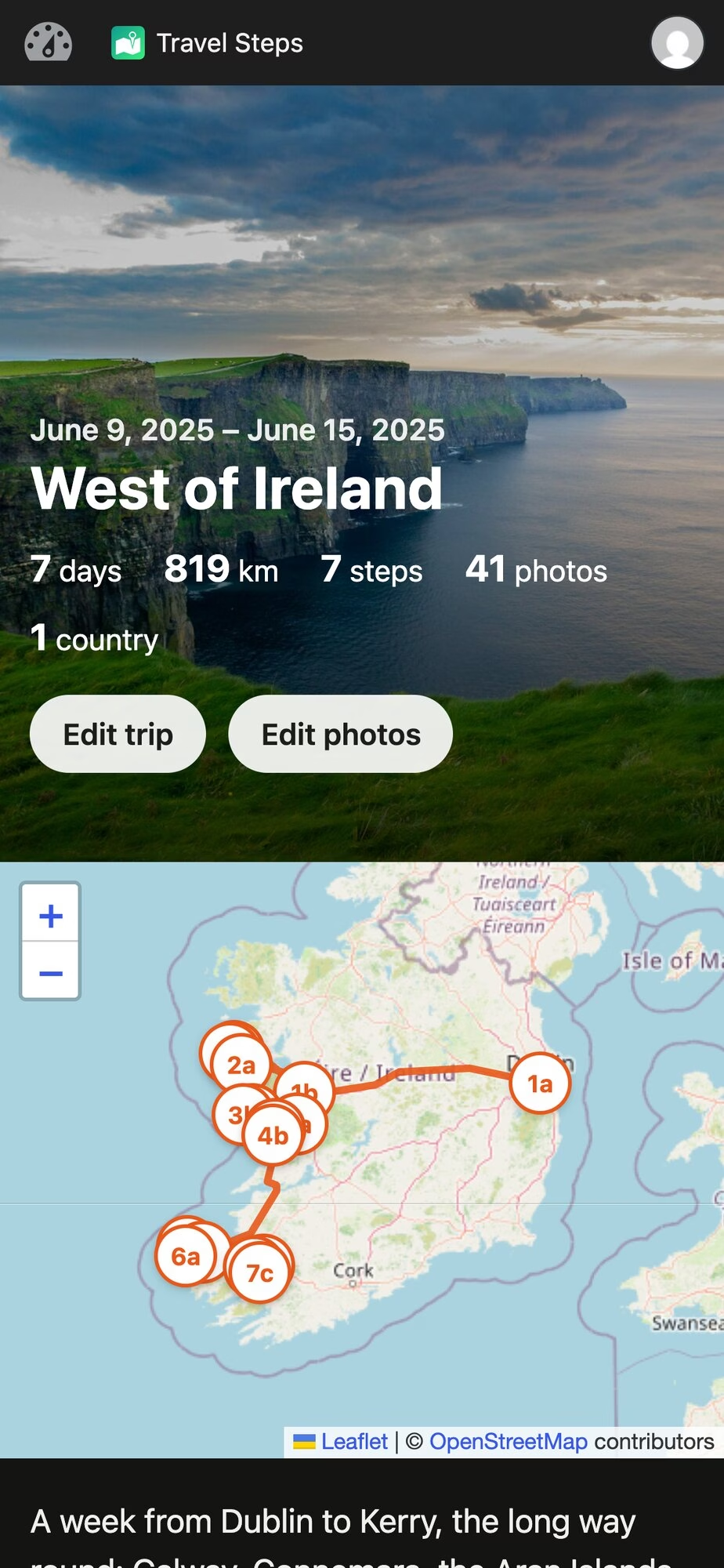
The map follows you as you scroll. Get to day 3 and day 3’s markers light up.
The distance at the top follows the whole route, flights included. GPS glitches that put you in the Atlantic for a second are dropped. Anything you’d have needed to travel faster than 1,080 km/h to reach counts as a glitch. Sorry, Concorde.
Your photos stay at home
Visitors never talk to Immich. WordPress fetches each photo, caches it and serves it itself, so Immich and the original files stay private. It caches a trip’s photos in the background after a sync. The trip keeps working when Immich is down. A daily sweep deletes cached photos older than a number of days you choose, whether a trip still uses them or not, and they’re fetched again the next time someone looks.
Photos you upload to a trip keep their GPS in the original, but it’s stripped from every copy WordPress makes, and only those copies are ever sent. A trip can have a password, and you can let some logged-in people skip it.
Pin, hide, cover
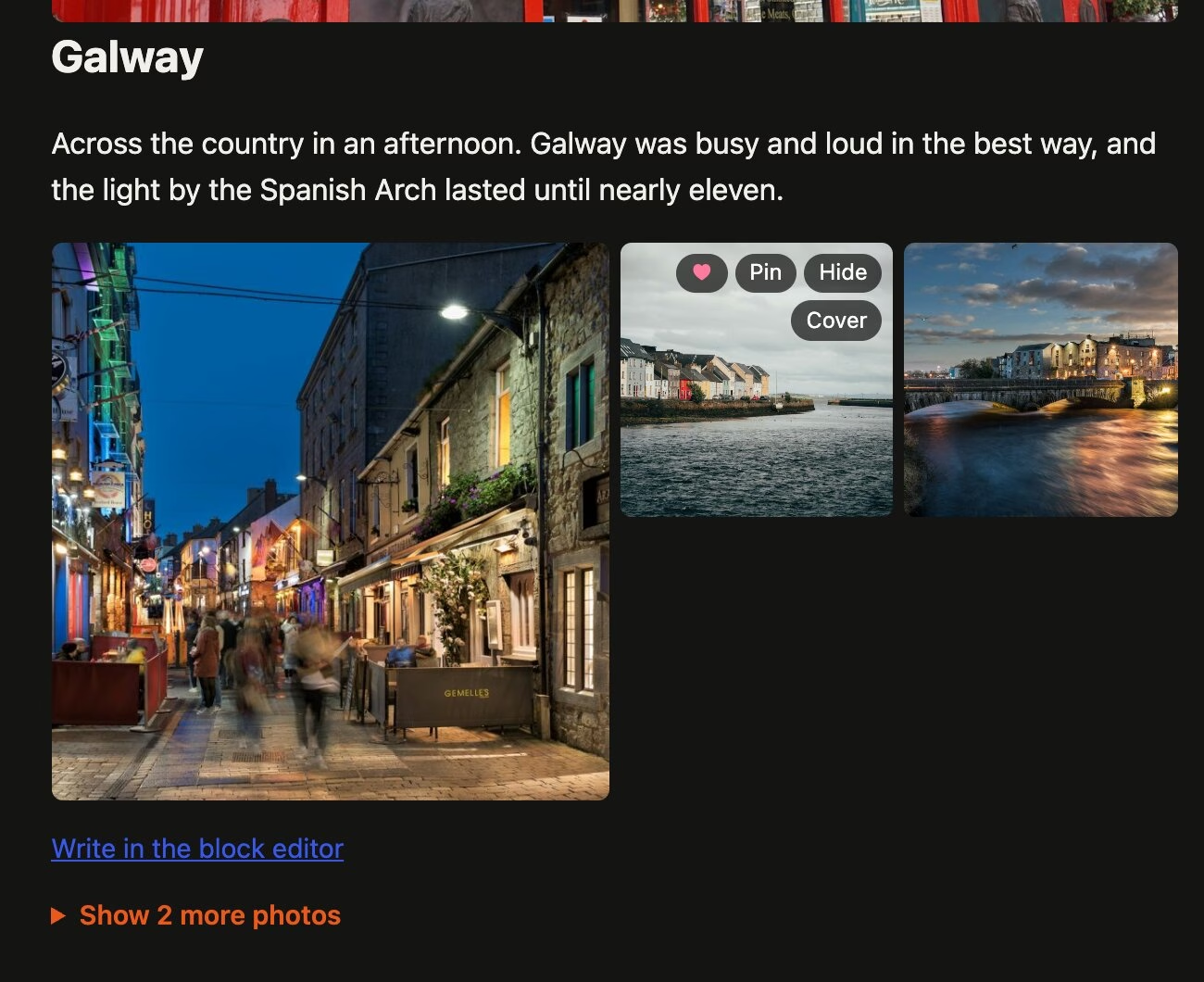
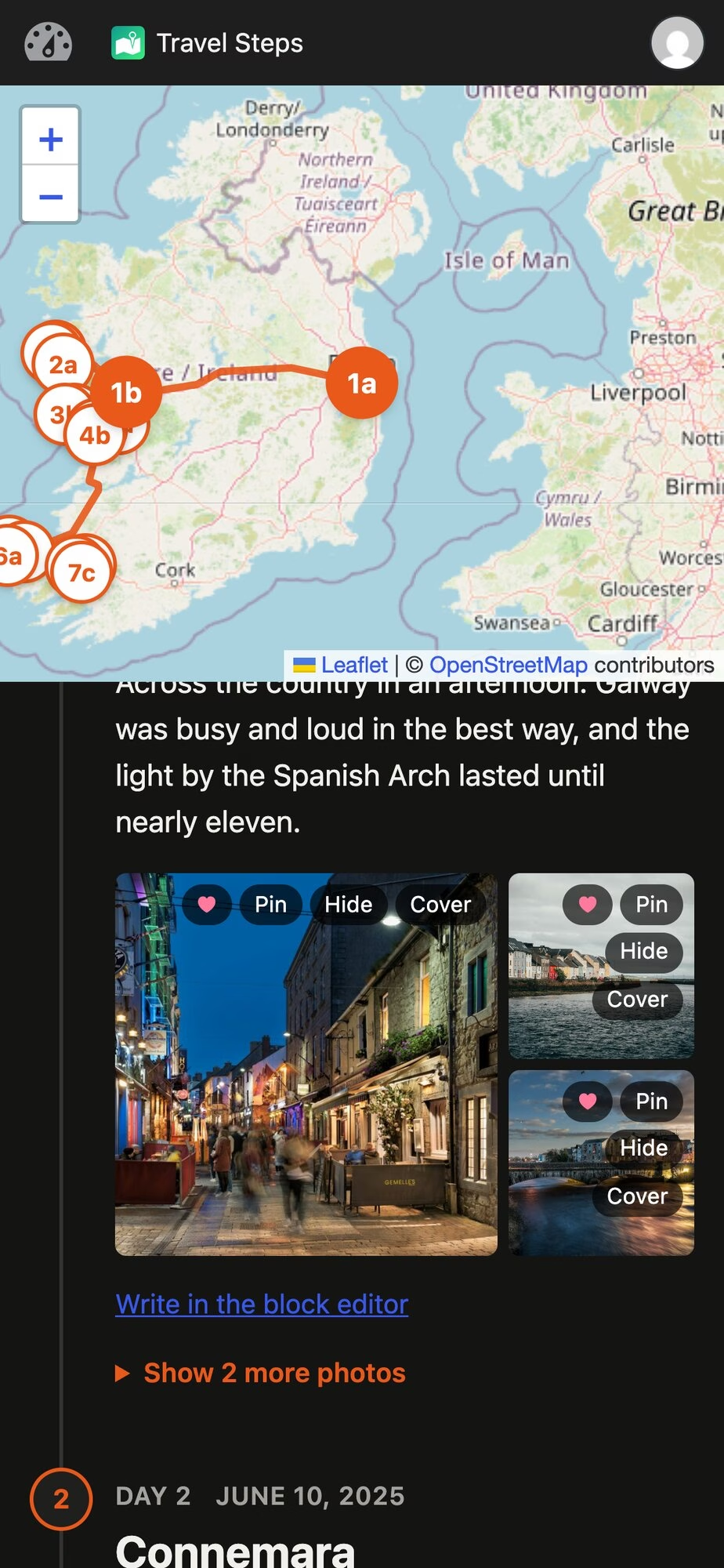
Hover over a photo to pin it (always show it), hide it, or make it the trip’s cover. The rest of the day’s photos sit behind a “Show more photos” link.
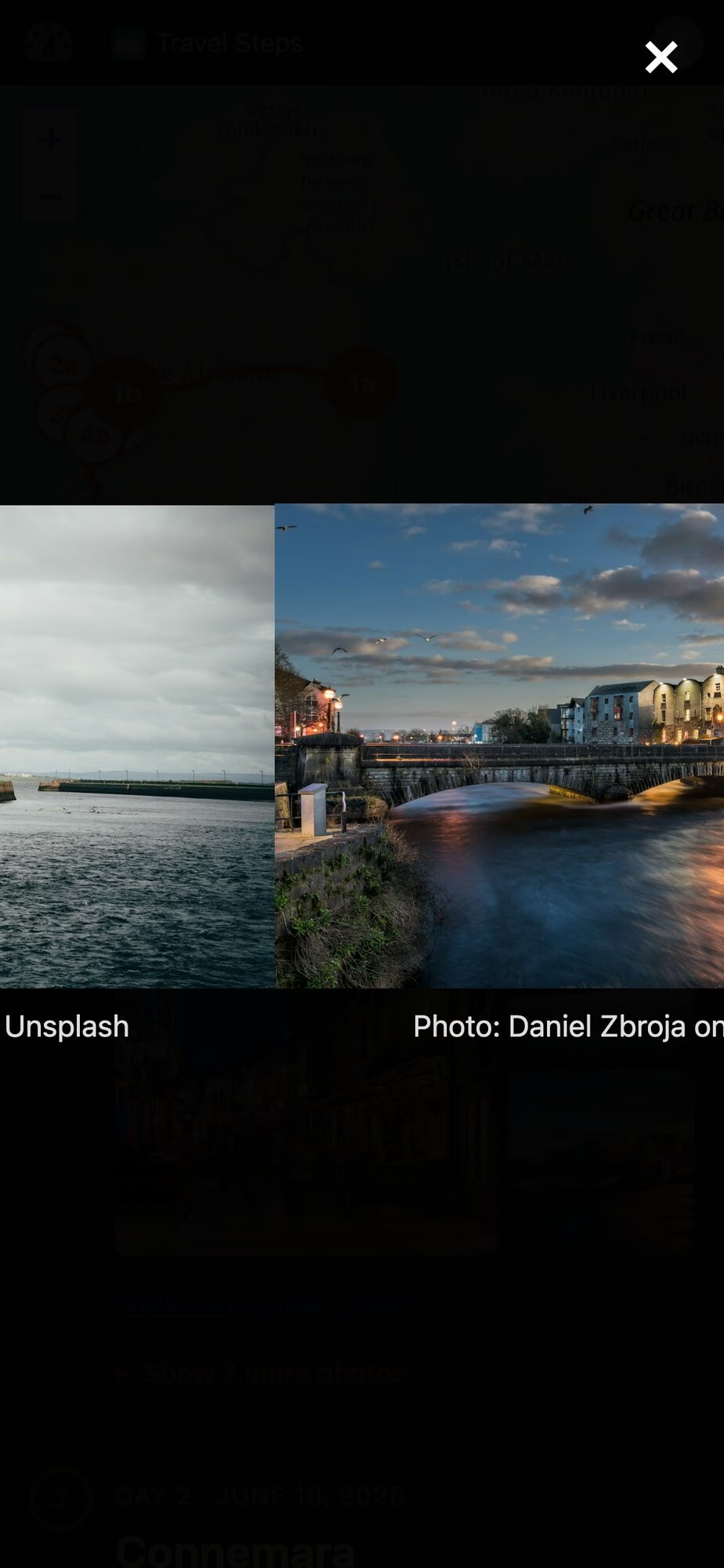
On phones, those buttons show up after you press Edit photos as illustrated by the images below.
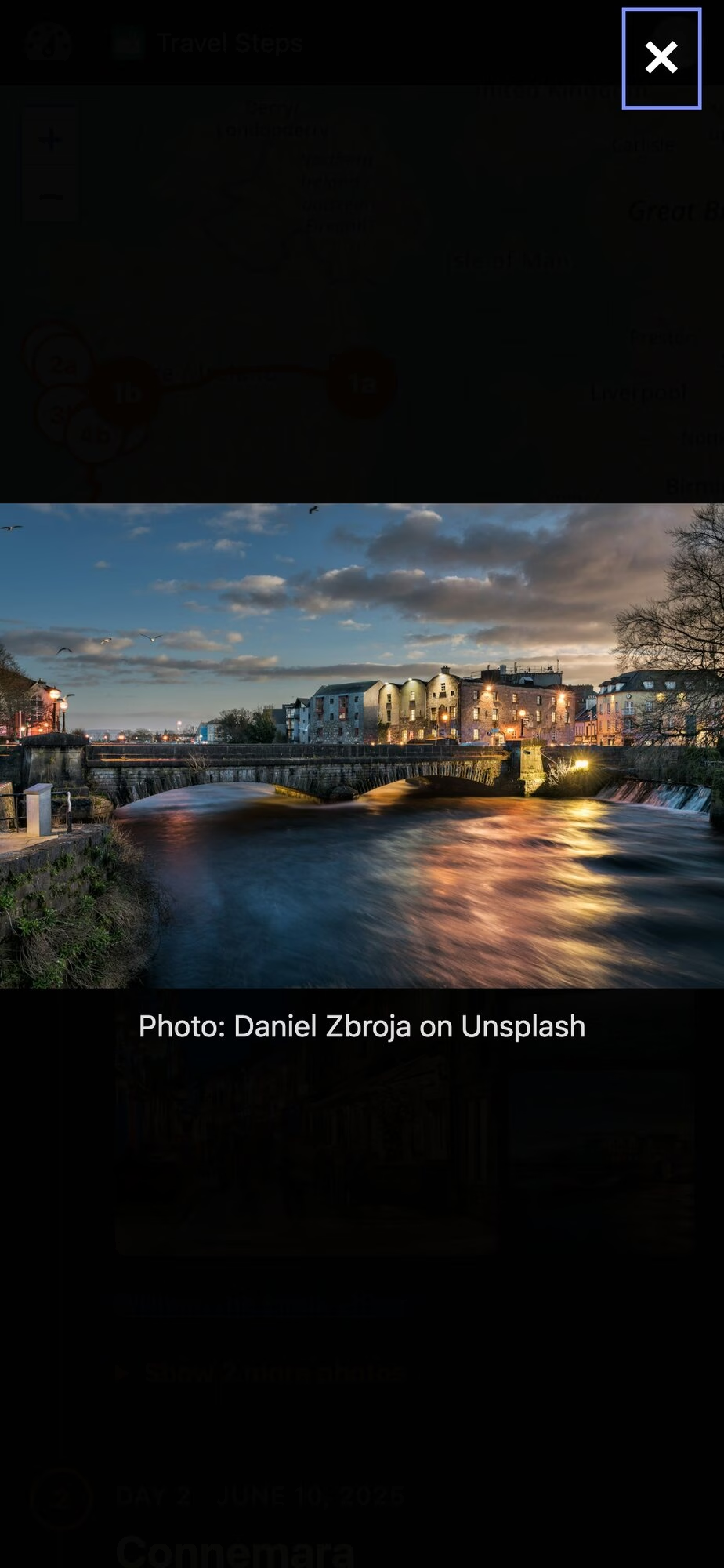
Tap a photo and it opens full screen. On a phone you swipe from one photo to the next, edge to edge. On a desktop there are arrows, and the arrow keys work too.
Try it
Here’s a demo in WordPress Playground. It’s a week in the west of Ireland, running in your browser that installs nothing. Stand-in Immich and Dawarich servers feed the real sync code with photos from Unsplash. You’re logged in as an admin, so press Sync, pin and hide photos, and edit the days in the block editor. It all disappears when you close the tab.
The code is on GitHub. To install it, download travel-steps.zip from the latest release and upload it under Plugins → Add New. It needs WordPress 6.7 and PHP 8.0. Immich and Dawarich are both optional. It has been submitted to WordPress.org but if you read this blog, you’ll know how to install a plugin from a zip file!
WpApp
Travel Steps is built on WpApp, Alex Kirk’s framework for building apps on top of WordPress.
A plugin usually adds screens to wp-admin, or puts its pages inside your theme and hopes the CSS gets along. A WpApp app gets its own URLs instead (/travel-steps/ here), and its pages are plain HTML with no theme in the way. WordPress still does the boring work: users and logins, roles, the block editor, the REST API, cron and the database. WpApp adds the bits in between:
URL routing, using WordPress rewrite rules,
pages that don’t load your theme,
the admin bar on every page, with the app’s own icon (the green map at the top of my screenshots),
access control using WordPress capabilities.
You can start one with composer create-project akirk/create-wp-app my-app. Alex has a showcase of apps built with it, including a cookbook and a family wiki.
Built with Claude Code
I wrote Travel Steps with Claude Code. The first commit was on 11 October, and there are many more now. Most of the work went round the same loop. I file an issue, Claude fixes it test-first on a branch and opens a pull request, and other agents review it. I deploy it to my own server and try it. The tests run in WordPress Playground too, the same as the demo.
If you run Immich, give it a whirl. Bug reports welcome on GitHub 🙂
I just want to mark this time with a blog post. For years people have been looking for Lightroom (and then Lightroom Classic) alternatives. And for years there have been alternatives for Lightroom/LrC and Photoshop like GIMP, DigiKam, Darktable and others. The advent of AI tools made it easier to create these sorts of projects, but Adobe posted record profits this year, so I don’t think they’re worried just yet. Their stock price is down, maybe reflecting investor attitudes to the new tools, but coding an app is only one part of it. Distribution and getting people to use it is another.
RapidRaw appeared just over a year ago that looks like Lightroom, and it’s a pretty decent editor. However, it displays compressed DNG files in a strange purple shaded almost mono way but displays Sony ARW files perfectly. An earlier version I tried didn’t have recursive display of photos in a directory tree (or maybe I didn’t find that setting) but the latest version does. I might be to help them figure out the problem with compressed DNG files.
Meanwhile, the latest Lightroom clone to hit the internets is LightCraft, part of the ArtCraft series of apps that replace the entire Adobe suite and some Microsoft apps.
They’re only a couple of weeks old, but the user interface of LightCraft looks very like Adobe’s Lightroom. My YouTube history this week is full of videos talking about it, about what’s missing from it usually, but there’s an optimistic feeling that these apps might be able to replace your Adobe subscription sooner rather than later.
I tried it and it behaved well. Like RapidRaw, it didn’t play well with compressed DNG files, displaying a message saying:
LightCraft can’t decode this raw variant vet (lossy JPEG XL tile with a declared encoding that is not linear RGB). You’re editing the camera’s embedded JPEG preview, which already includes the camera’s picture style (e.g. Monochrome) and white balance.
It had no such problem with Sony ARW files, but wasn’t able to apply lens correction.
Anyway, they’re worth keeping an eye on if you don’t want to send Adobe any money. LightCraft shows how much you can do quickly with AI, but RapidRaw is a slightly older project developed using AI tools too. That project impressed me but there’s a huge amount of work to do, regardless of what magic pixie dust you throw at it.
Here are a couple of videos you should watch. Fstoppers put PhotoCraft through its paces, while Andy Hutchinson goes through LightCraft. Whatever you think of the apps now, it’s early days yet. I think they’ll have a pretty good chance of persuading a few people to stop using the Adobe Suite.
Edit:
Mark G Adams posted reviews, here and here of RapidDraw 1.6.6 that added a bunch of interesting features, and also CalibRaw 1.3 that has some overlap with those features. It’s quite amazing what’s happening with RAW editors these days. Relighting was added to Camera RAW recently (I think?) and these apps already have a similar feature.
Edit 2 on October 23rd: I just found out about RAWmakase, another RAW editor that looks like Lightroom. Unfortunately, it doesn’t edit lossy DNG files either so they must all be using the same library for opening RAW files.
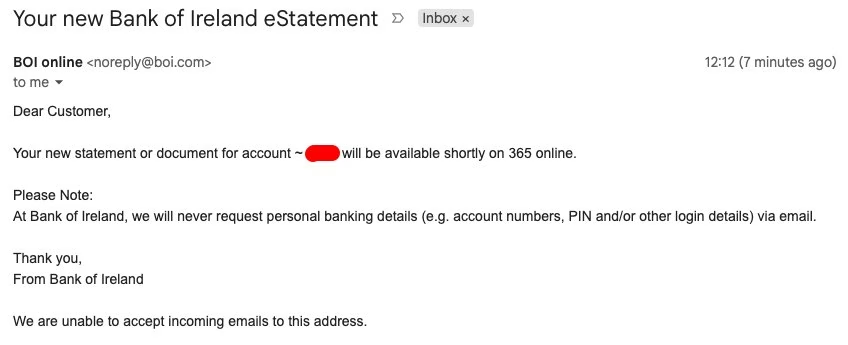
FYI – if you open a Bank of Ireland account, please ensure you give them the correct email address or private correspondence will be sent to someone else.
Luckily, BOI is off the hook:
This email and any files transmitted with it are confidential and intended solely for the use of the individual or entity to whom they are addressed. It is possible for data transmitted by email to be deliberately or accidentally corrupted or intercepted. For this reason, where the communication is by email, the Bank of Ireland Group does not accept any responsibility for any breach of confidence which may arise through the use of this medium.
I was sitting at my desk in a small office in Ballincollig when John burst through the open doorway, “A plane has hit the World Trade Center!”
My office, a few years later.
The rest of the day was a blur, but someone found a TV and set it up in the next office, where John and Una worked, I think. We went in and out looking at it and keeping an eye on news sites.
It’s hard to say for sure, but I think it was the first time I became aware of the World Trade Center. This was 2001. I’d only left the country a couple of times, and never been to the US. In an age before we were so connected the world wasn’t so small.
It didn’t matter because the enormity of it soon became clear, and the horror was plain to see. I remember being very upset that evening.
I spent 3 or 4 years coding in assembler on the C64. I’ve been a retro fan of the machine for far longer now but haven’t really immersed myself in it like I did in the early to mid nineties.
Despite the time that has passed since then, and all that had happened, some things are still stuck in my brain and one of those things is the common hex locations used for various functions.
BASIC programmes were stored at $0801 so when you typed the following it was stored there in memory.
10 PRINT "HELLO WORLD"
20 GOTO 10
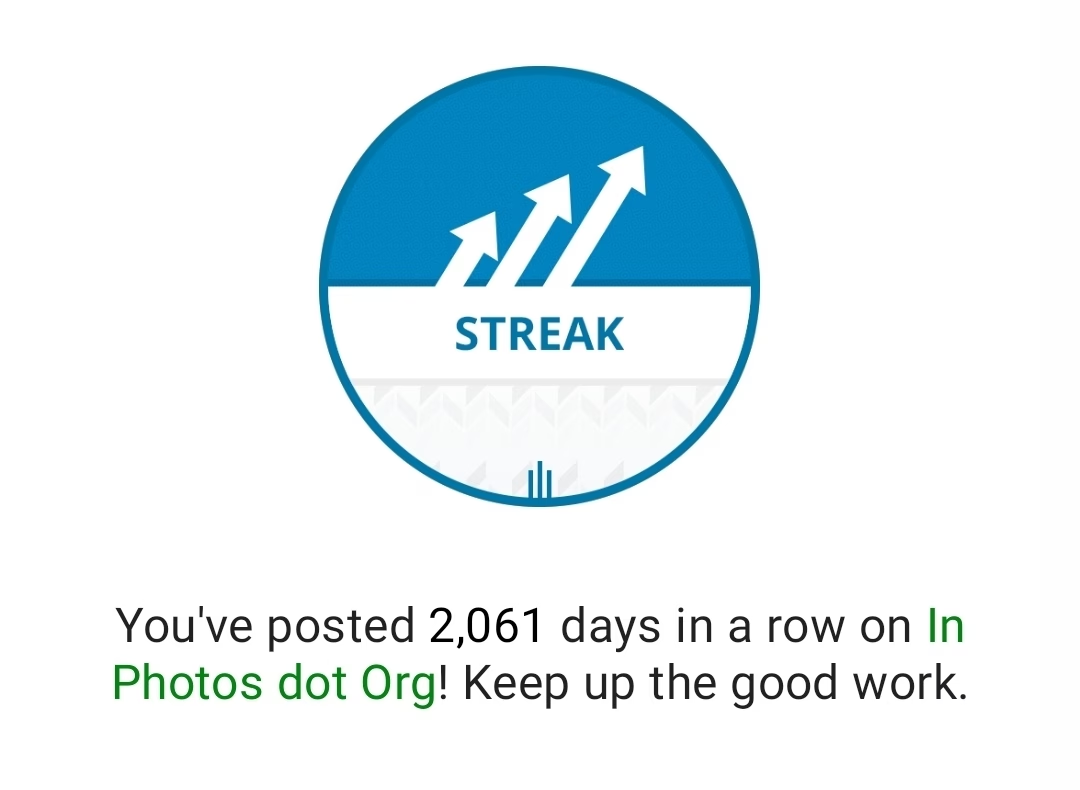
If you were programming in assembler you could create a BASIC programme to execute it like this, and it would run the assembler at $080d, the hex equivalent of 2061, and the next byte of memory after this BSSIC instruction.
10 SYS 2061
This all popped into my head when I saw my posting streak for my photo blog today.
Other numbers that live in my brain without thinking are $1000 and 4096 (where many sid tunes lived), or even $c000 and 49152. I have so many disks with chunks of code at $c000.
So, this is what those numbers mean to me. A nostalgic trip down memory lane.
Do you have a similar association with numbers from long ago?
Someone was ranting on Facebook about how inaccurate the Queen movie was and offered this video as proof that Freddie didn’t have to come begging back to the band to be allowed to perform with them before Live Aid.
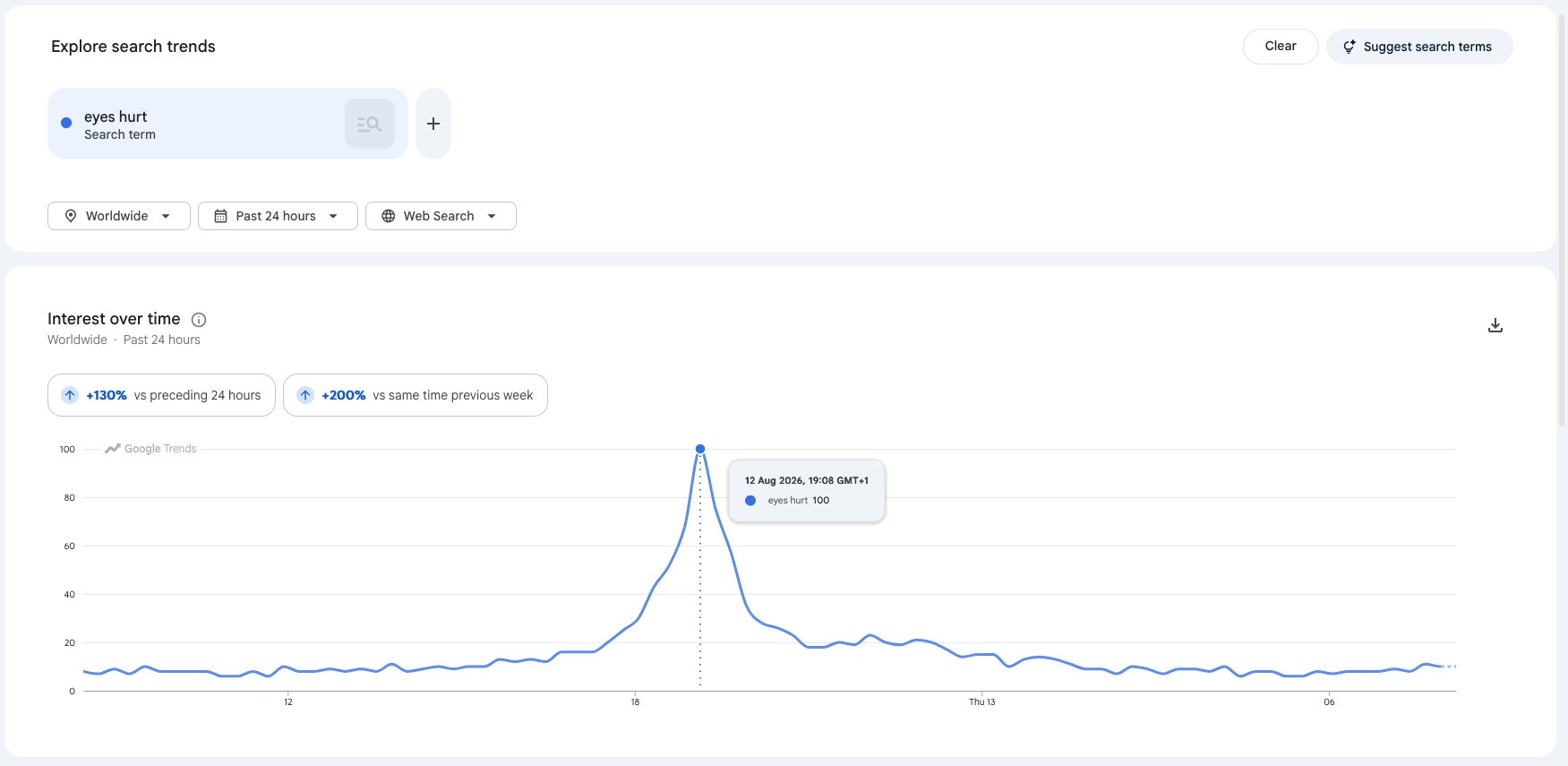
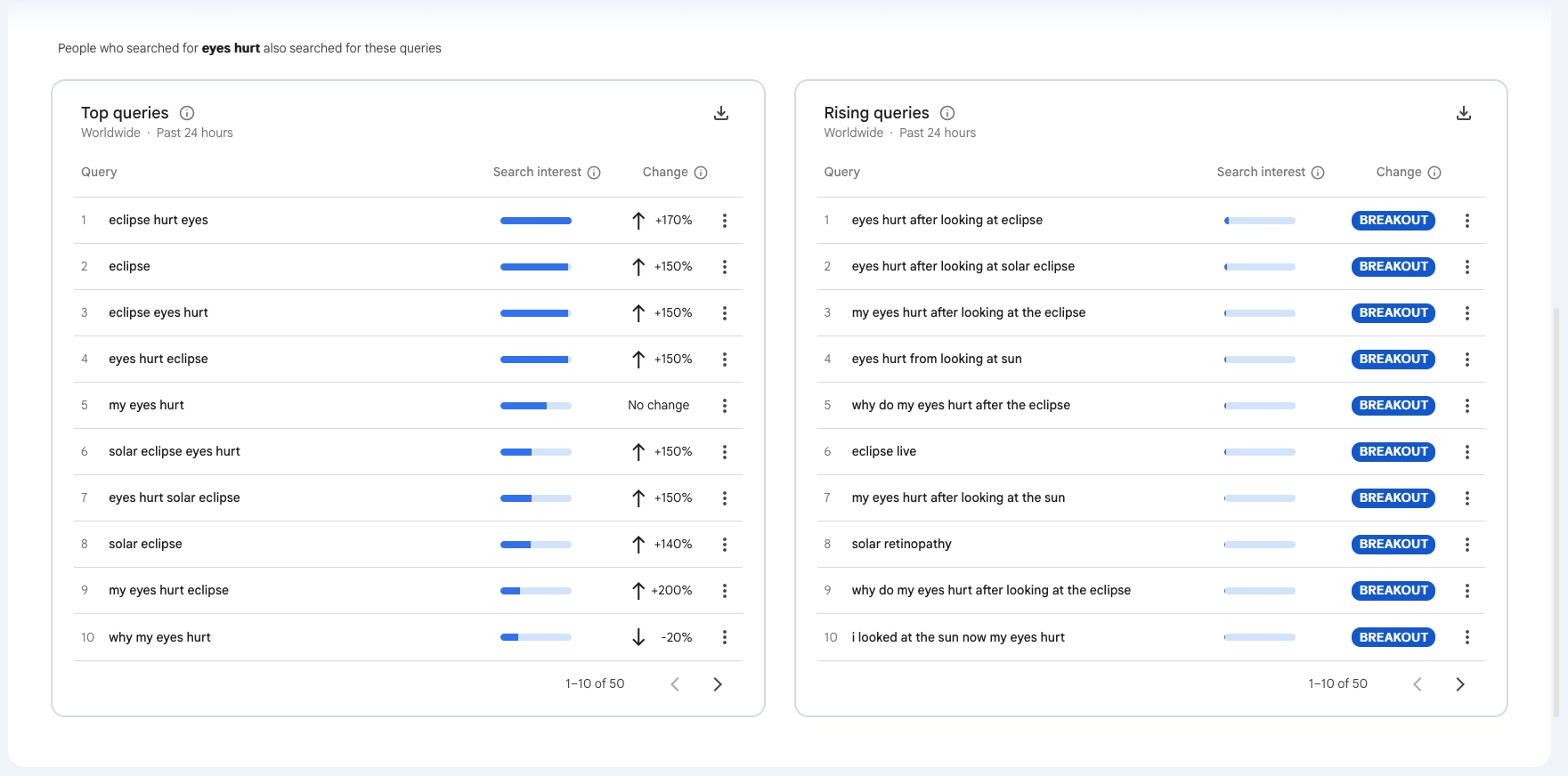
Searches for “eclipse hurt eyes” jumped 170% in the last 24 hours after the eclipse yesterday evening. Ouch. I hope those people didn’t stare too long and that no permanent damage was done.
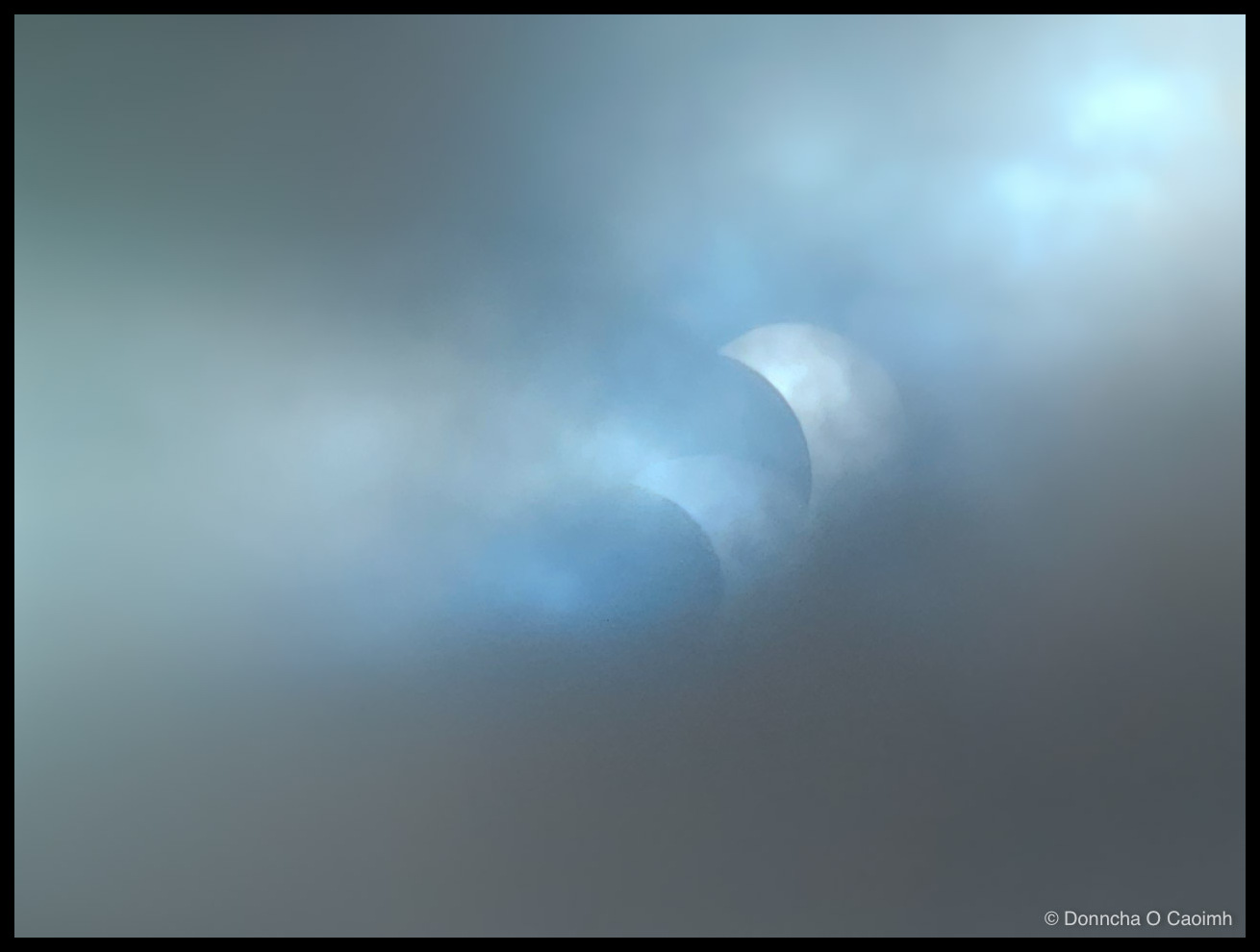
The sky was cloudy where I live, but I still managed to get a photo, even if it was only with my phone as the clouds briefly allowed the sun through. So much for my plans to use eclipse glasses with my compact camera.
Instead, I spent a nice evening with my wife, our pets and a neighbour who called over for a chat. Lovely!
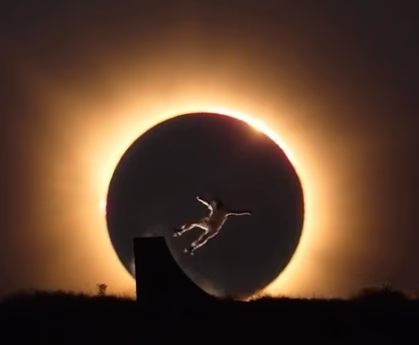
As expected, Facebook is full of amazing photos of the eclipse, but I love this.
After a recent update, Firefox somehow stopped showing me the https:// part of the URL.
I’m not sure how, but if the same has happened to you, go to about:config and search for browser.urlbar.trimURLs and make sure that’s set to false.
https:// is back. 🙂
Close
Ad-blocker not detected
Consider installing a browser extension that blocks ads and other malicious scripts in your browser to protect your privacy and security. Here are a few options.
uBlock Origin is a free, open source, ad blocker for your browser.
Use pi-hole if you have a spare Raspberry Pi on your network.
Set the private DNS settings on your phone to dns.adguard.com to block adverts and trackers.