Earlier this month I noticed that a particular bot that likes to visit my website, “MJ12bot/v1.4.8” seems to be particularly attracted to the “reply to comment” links generated by my blog. Those are links that bots see, but we see the “Reply” button that uses JavaScript to reply to a comment.
To be honest, it’s pretty annoying to see a bot constantly fetching those URLs from my website. Earlier this month, it was on a roll and grabbing several dozen at a time. While my server can handle the traffic without any issues, who wants a bot trampling over their server?
I decided to stop them in two ways:
Redirect them back to the post in a mod_rewrite rule.
Block them in robots.txt and hopefully the bots will go away.
Coming up with a mod_rewrite rule was surprisingly hard, but after mentioning this on Mastodon I received a reply from Jos Klever who figured out I needed the QSD flag. So, to spare you the hassle of researching it, here are the mod_rewrite rules that worked for me. It causes a 301 permanent redirect to the anchor tag of the comment. Add this to your .htaccess file.
Blocking requests like this in the robots.txt is much simpler. WordPress can generate the robots.txt file for you using the robots_txt filter. Add the following to a mu-plugin PHP script.
I haven’t received many comments on my posts lately. However, I stumbled upon some interesting posts by clicking the RANDOM link above, which I decided to examine as part of my research. During my search, I delved deep into the blogosphere of the past, almost like being an archaeologist, because some links were no longer available, and I had to search for them on archive.org. I was also pleasantly surprised to find that a link to a GIF from 2005 was still alive!
You might not be on Mastodon yet, but your blog could get a torrent of traffic from Mastodon, or other Fediverse network if it’s shared there.
If your website is mentioned there, it might be the “victim” of an inadvertent denial of service attack, as hundreds or thousands of servers request the URL in the 60 seconds or so afterwards. That is precisely what JWZ blogged about last month when his site was taken down by Mastodon servers.
Every time I do a new blog post, within a second I have over a thousand simultaneous hits of that URL on my web server from unique IPs. Load goes over 100, and mariadb stops responding.
JWZ has over 8,000 followers. Every time he shares a post on Mastodon, the instances (servers) where those followers live will send a request to his blog to generate a preview. Actually, two requests will be sent:
A request for the wp-json embed for the page.
A request for the page that was shared.
Eventually, he blocked the Mastodon user agent. That stops previews of his website showing up on Mastodon posts, but resolves the problem for his website.
Yesterday morning, I decided to see what effect sharing a link on my Mastodon account would have on my server. My Mastodon account has 1.8K followers. A far cry from the number of followers JWZ has, but still enough to test my server.
I wanted to test several scenarios:
Caching the post before sharing.
Changing Apache configuration.
Sharing without caching on my server.
My server is at Linode. I pay an average of $24/month to run this site and my photoblog is on it too where I share a daily photo + link on Mastodon. It’s not a heavy-duty server that can withstand a huge amount of traffic.
If you’d like to skip the details, my server coped fine with sharing a URL from here to Mastodon. The load average went up for about 20 seconds, topping out at the max for about 5 seconds before things calmed down. It was responsive the whole time. Install a full-page caching plugin like WP Super Cache, Jetpack Boost and WP Rest Cache and your site will probably be fine. Jetpack Boost and the Jetpack Image Accelerator will help when human visitors arrive.
1 minute load average topped out at 1.34 for 5 seconds.
The page was cached by WP Super Cache, but I had set the garbage collection TTL to 60 seconds and I believe it expired halfway through the test, so it had to generate the cache again. Once I adjusted that, and set the TTL to 600 seconds, the second test performed better. The page remained cached throughout:
273 requests for the page embed.
289 requests for the page itself.
1 minute load average topped out at 0.71 for 5 seconds.
The main points of my Apache configuration:
Keep alives are disabled.
5 start servers
Minimum 10 spare servers
When I reduced the start and minimum spare servers to 1, the next test took longer to complete, and the load average rose to 1.24, even on a fully cached page. This was expected as the server didn’t have the spare capacity to deal with the sudden traffic.
After reverting the changes to Apache, I disabled caching on my blog and shared another URL. The load average only rose to 1.12 for a very short time. I was pleased with that. While caching does help, my server could cope with that traffic.
A sample of the user agents used by Mastodon instances hitting my blog for previews
I suspected that there was one hit per Mastodon instance on my site. I checked my logs and was proved right. For all the accounts that follow me on mastodon.social, only one request was made. That does mean the onslaught of requests isn’t as bad as it might be. Instead of 1,800 requests for a page, there were far fewer. I did notice that a Friendica instance requested one of my test URLs several times.
Mastodon and other Fediverse servers will start requesting a preview within a second of you sharing your post on the network. It helps if your server is running some sort of caching.
If you have many Mastodon followers or if you’re worried about a DDoS from Mastodon, the following will help:
Make sure Apache/Nginx has the spare capacity to grow quickly and respond to a sudden torrent of requests.
Use “expert caching” in WP Super Cache which serves the cached page using mod_rewrite. That will mean your blog post is served almost as fast as requesting a text file from the server. No PHP is executed at all.
Install WP Rest Cache as it will soon cache the embed page request.
Install Jetpack and enable the Image Accelerator and Jetpack Boost for human visitors who come later.
This problem has existed for a long time. Popular blogs had the same issue when they published new content and people following their blogs (through RSS feed readers, remember them?) hit the server looking for the new post. At least with Mastodon, you can load the post in a private browser window and cache it before sharing it. I want to write a WP Super Cache add-on plugin that allows the site owner to preload a new post as it’s published. That will ensure the new content is ready for sharing. I haven’t started work on that yet, so don’t ask when it’ll be done. Maybe someone else will beat me to it and claim all the credit!
Before we start, do you know what Mastodon is? It’s sort of like email, where you can send an email from gmail.com to a yahoo.com account, except it looks very like Twitter. This pcmag article is a good introduction to it. Jeff Jarvis wrote a good post too, and Time Magazine interviewed Eugen Rochko, the founder of Mastodon that you should read.
This weekend, a probably sizeable chunk of #IrishTwitter migrated to Mastodon. We’re not the only ones. Twitter has been getting more hateful and acting as an echo chamber for lots of horrible people over the years. The sale of Twitter to Elon Musk, the firing of half the staff, his pronouncements of “free speech” all point towards the site being less regulated, less maintained and less moderated. You can’t deal with complaints if there’s nobody there listening to complaints of harassment or hate.
(No we didn’t)
I don’t doubt that many of us will continue to visit and contribute to whatever Twitter becomes. Over the last few years, most of my interactions there have been publicising my blog posts. All I could see on there was angry tweets from different people, or people who were broadcasting their top ten ways of doing X, Y or Z. Hardly any actual conversation.
So, Mastodon. I woke up early on Saturday morning and discovered there was a #TwitterMigraton to Mastodon. I already had an account on mastodon.social but Irish Twitter was moving to mastodon.ie, and that’s where I went too, creating @donncha@mastodon.ie.
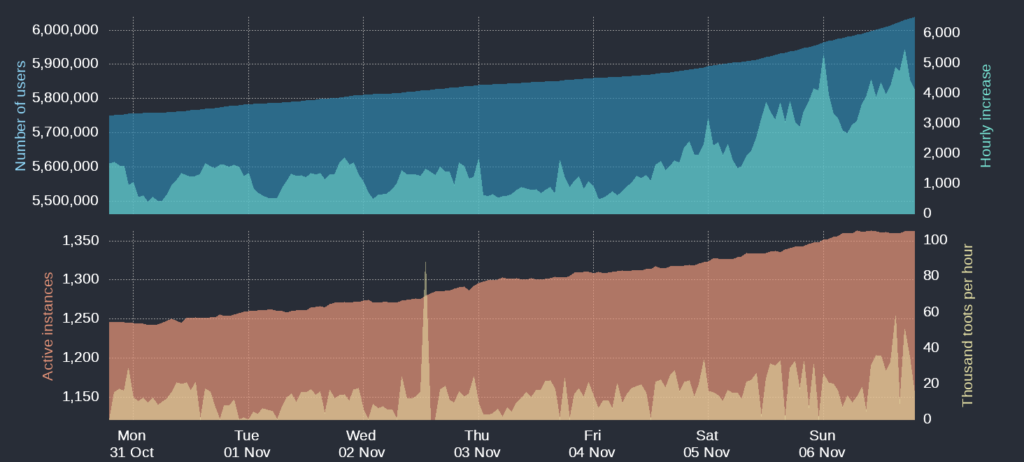
Judging from what I’ve read elsewhere, all mastodon instances are experiencing a HUGE surge in user registrations as people look for an alternative to the stinking sinking ship that is Twitter.
On Saturday, the admins of mastodon.ie ran into performance difficulties as they dealt with the influx of new users. The site slowed down and people couldn’t upload images. Over 6,000 people are on that instance now.
Remember the early days of Twitter?
The admins increased their hosting plan, eventually maxing out at the top tier. To pay for hosting they asked for donations. Right now they have raised over €4100!
How do I add my WordPress blog to Mastodon?
It’s mostly straight forward. Install these two plugins:
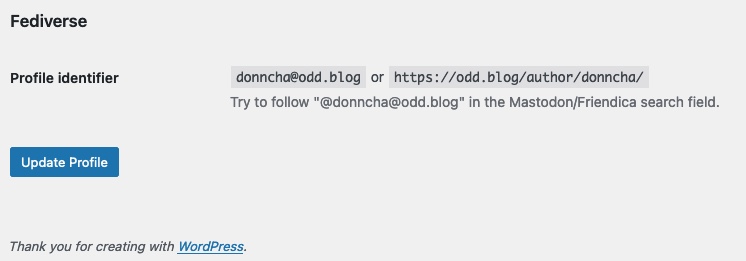
The installation instructions are unfortunately not great. After you install both plugins, go to your Profile page (Users->Profile) and scroll right to the end. Down there you will find your profile identifier. It will look like @author@hostname.tld. For this blog that is @donncha, and I have my photoblog at @donncha. Search for those on Mastodon and you will find my two blogs. Please feel free to follow!
When a post is made and shared on Mastodon, it allows others to reply. Those replies to the toot on Mastodon will be sent to your WordPress blog as a comment! That blew my mind when I discovered that!
Troubleshooting
I discovered that running the plugins on a multi-site WordPress install will cause problems. Instead of activating it on the root install, you need to activate it on each one. I presume that’s maybe because the rewrite rules are added on plugin activation, but that’s just a guess.
If you have caching you might want to turn it off, or at the very least disable caching in /.well-known/ as that’s where Mastodon and other services will query your server for updated information.
It can take 10 to 15 minutes before a new post is seen. Be patient!
Why not?
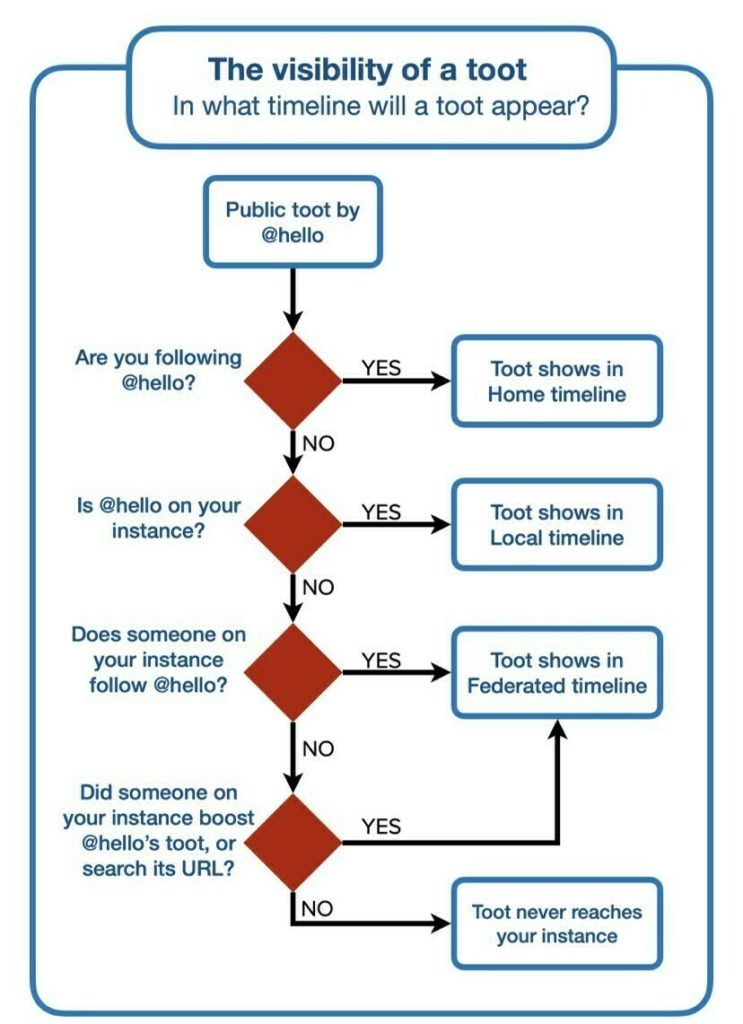
There’s one reason you might not want to do this. Your blog will be on a Fediverse instance by itself. Your blog posts will only show if someone is following it, or you boost the toots on Mastodon, or in the Federated feed. They won’t show in the Local Feed of your Mastodon instance. The best way around this is by careful use of relevant hashtags, but please don’t spam them, or you’ll be blocked.
Alternatives
You can hook your WordPress blog to your account too. I haven’t used them, but I saw two people use these plugins. Those posts will appear in the Local Feed of your Mastodon instance, which is a plus for discoverability.
You can also use IFTTT if your site can’t run plugins, and you have an RSS feed. Some details in this blog post. Thanks Sandy for that link!
I’m very excited about this. Is it too early to say that there’s enough momentum to sustain a #IrishMastodon community? I hope it succeeds.
Edit: George has a guide on his blog explaining how to do the same thing but points out that you need the WebMention plugin to receive replies as comments. I saw replies to my toots appear here as comments, but only if they were direct replies. If I replied to someone who replied to my blog that reply wouldn’t show as a comment, and I just tested that again and WebMention doesn’t change that, unfortunately.
Matthew Thomas has created a remote follow tool called apfollow, with source available. This creates a page where you can follow a Mastodon account by entering your own details in a box and it redirects you to your home server to do the follow. Here’s a link to follow my Mastodon.ie account. It fails for me, but maybe that’s something to do with mastodon.ie settings. I’ll fill out a bug report but it looks promising.
You’re the only one who logs into your WordPress website.
You only do it on your computer at home.
You lock your computer every time you step away, even when there’s nobody at home.
You have a 2FA plugin which adds a new field, and means checking your phone on each login.
You might have become annoyed from time to time when you forget to check the “Remember me” checkbox on the login page. You know that you will have to log in again tomorrow or whenever the login session expires, rather than in 2 weeks time. Just because of an empty checkbox.
There’s very valid reasons for not checking this box. If you use a public computer, or one in an office and don’t lock your computer, then you want to be logged out. For the rest of us, it’s a bonus if you don’t need to login again so soon.
Here’s a tiny little script that will check the “remember me” checkbox. Create a php script called remember-me.php in wp-content/mu-plugin/ with the following:
My Facebook account was permanently banned on Wednesday along with all the people who take care of the Cork Skeptics page. We’re still not sure why but it might have something to do with the Facebook algorithm used to detect far-right conspiracy groups.
When your account is disabled you’re given the opportunity to upload some form of ID. That is the price of requesting a review. Unfortunately if you are permanently banned you will only be informed after uploading the photo that permanently banned accounts cannot be unbanned. It’s a particularly evil but clever way for Facebook to gather real world identifiable information about a user who may be desperate to get back into their account.
The good news is that our accounts were restored last night after two days in which we tweeted about it and contacted everyone we knew who might be able to help. Thank you to everyone who RTed, liked or commented on those tweets, or helped in other ways behind the scenes. I really do not know how this decision was reversed so don’t bother asking, sorry. We’re not the only group to be banned in error. It happened to a group of seventeenth century historical re-enactors who were banned but then unbanned.
The first thing I did when I logged in again? I downloaded all my information so if it happens again at least I have a copy of what I posted there. I haven’t come across the photo of my ID in my downloaded information however, though it might be there. I haven’t looked at all of it yet. Thank you GDPR.
If you have a Facebook account you should download your information too because it could happen to you too, even though you did nothing wrong. Go here and click the “Create File” button now.
Yeah, I know you won’t do it but you really should.
People say the age of personal blogging is over because everyone is on social media but I beg to differ. At least I won’t be banned from my own self-hosted blog any time soon.
Inchydonney Beach, December 12th 2020.
Update: All the admin users of Cork Skeptics were once again banned from Facebook on Friday, January 22nd 2021. If you know anyone in Facebook I would appreciate a word with them!
Update: Much later. Our accounts were restored and the Cork Skeptics page was restored but that’s twice now so we have deleted the page to avoid any more problems.
Make sure you do regular backups of your Facebook data!
I’ve been running a photoblog at inphotos.org since 2005 on WordPress. (And thanks to writing this I noticed it’s 15 years old today!)
In that time WordPress has changed dramatically. At first I used Flickr to host my images, but after a short time I hosted the images myself. (Good thing too since Flickr limited free user accounts to 1000 images, so I wrote a script to download the Flickr images I used in posts.)
For quite a long time I used the featured image instead of inserting the image into the post content, but then about two years ago I went back to inserting the photo into the post. Unfortunately that meant the photo was shown twice, once as a featured image, and once in the post content.
The last theme I used supported custom post types, one of which was a photo type that displayed the featured image but hid the post content. It was an ok compromise, but not perfect.
Recently I started using Twenty Twenty, but after 15 years I had a mixture of posts with:
Featured image with no image in the post.
Featured image with the same image in the post.
I knew I needed something more flexible. I wanted to hide the featured image if it also appeared in the post content. I procrastinated and never got around to it until this evening when I discovered it was actually quite easy.
Copy the following code into the function.php of your child theme and you’ll be all set! It relies on you having unique filenames for your images. If you don’t then remove the call to basename(), and that may help.
The post_thumbnail_html filter acts on the html generated to display the featured image. My code above gets the filename of the featured image, checks if it’s in the current post and if it is returns a blank string. Feedback welcome if you have a better way of doing this!
The Crowdsignal team at Automattic have been quietly working on a new poll block for the last few weeks. We finally made it public today on WordPress.org!
We set out with the task of creating a block that would allow the writer to quickly insert a poll in their posts using the block editor. More than that, it had to be simple to use. It also needed to be themed to match the look and feel of the website it would appear on.
We’ve created a block that does that. It also records the votes collected on the Crowdsignal website where you can analyse the results using reports Crowdsignal users have always used.
Search for “Crowdsignal Forms” on your plugins page to install it in the usual way.
A free Crowdsignal account is required to use the block. We made it really easy to connect your site to your Crowdsignal account. If you don’t have one then creating a new account is simple too.
The first 2,500 responses you collect are included in your free account, and further votes are recorded but free users are encouraged to upgrade if they want to do further analysis of all the data they collect.
The output of svn diff can sometimes be hard to read, especially when there are a lot of changes to read through.
I also realise that you might think I’m a dinosaur for still using svn because git has nicely coloured diffs out of the box but talk to any WordPress plugin developer and they’ll have to use svn at some stage. On the other hand, if you’ve used svn for years you may not even realise you need coloured diffs.
I found a neat solution to that. Pipe the output of svn into colordiff.
This Bash function, svndiff, should be placed in the .bashrc in your home directory (or .zshrc or whatever shell you use, it’ll probably be similar)
function svndiff () {
    svn diff $@ | colordiff | less -R;
}
Log out and log back in or do source ~/.bashrc from the command line to get it working.
WP Super Cache is a full page caching plugin for WordPress.
Version 1.6.9 has just been released and is a required upgrade for all users as it resolves a security issue in the debug log. The issue can only be exploited if debugging is enabled in the plugin which will not be the case for almost all users.
The debug log is usually only enabled temporarily if a site owner is debugging a caching problem and isn’t something that should be left on permanently as it will slow down a site.
If there is an existing debug log it will be deleted after updating the plugin.
This release also improves the debug log by hiding sensitive data such as the ABSPATH directory of the WordPress install and login cookies. Unfortunately in the past users have copied the log file data into forum posts. A warning message has been added asking the site owner not to publish the debug log.
Details of the security issue will be added to this post in time to allow sites to update their plugin.
WP Super Cache is a full page caching plugin for WordPress. When a page is cached almost all of WordPress is skipped and the page is sent to the browser with the minimum amount of code executed. This makes the page load much faster.
1.6.3 is the latest release and is mostly a bugfix release but it also adds some new features.
This release makes it much easier for plugin developers to interact with WP Super Cache. In the past a file had to be placed in the “WP Super Cache plugins directory” so that it would be loaded correctly but in this release I’ve added new actions that will allow you to load code from other directories too.
Use the wpsc_add_plugin action to add your plugin to a list loaded by WP Super Cache. Use it like this:
You can give it the full path, with or without ABSPATH. Use it after “init”. It only needs to be called once, but duplicates will not be stored.
In a similar fashion, use wpsc_delete_plugin to remove a plugin.
The release also makes it much simpler to modify the cookies used by WP Super Cache to identify “known users”. This is useful to identify particular types of pages such as translated pages that should only be shown to certain users. For example, visitors who have the English cookie will be shown cached pages in English. The German cookie will fetch German cached pages. The action wpsc_add_cookie makes this possible.
do_action( 'wpsc_add_cookie', 'language' );
Execute that in your plugin and WP Super Cache will watch out for the language cookie. The plugin will use the cookie name and value in determining what cached page to display. So “language = irish” will show a different page to “language = french”.
Use wpsc_delete_cookie to remove a cookie. Cache files won’t be deleted. It’s doubtful they’d be served however because of the hashed key used to name the filenames.
do_action( 'wpsc_delete_cookie', 'language' );
If you’re going to use either of the plugin or cookie actions here I recommend using Simple Caching. While the plugin will attempt to update mod_rewrite rules, it is much simpler to have PHP serve the files. Apart from that, any plugins loaded by WP Super Cache will be completely skipped if Expert mode is enabled.
Close
Ad-blocker not detected
Consider installing a browser extension that blocks ads and other malicious scripts in your browser to protect your privacy and security. Here are a few options.
uBlock Origin is a free, open source, ad blocker for your browser.
Use pi-hole if you have a spare Raspberry Pi on your network.
Set the private DNS settings on your phone to dns.adguard.com to block adverts and trackers.