There’s going to be an emergency PHP release made in just over 2 hours. It’s to address a critical security bug.
I’m not sure how long it’ll be before Ubuntu updates, but I will preload a bunch of posts here and on inphotos.org using WP Super Cache and turn off PHP until it’s updated. The files will be served by Apache’s mod_rewrite, so no PHP involved at all. Uncached pages won’t be so lucky, but at least some pages will still be live.
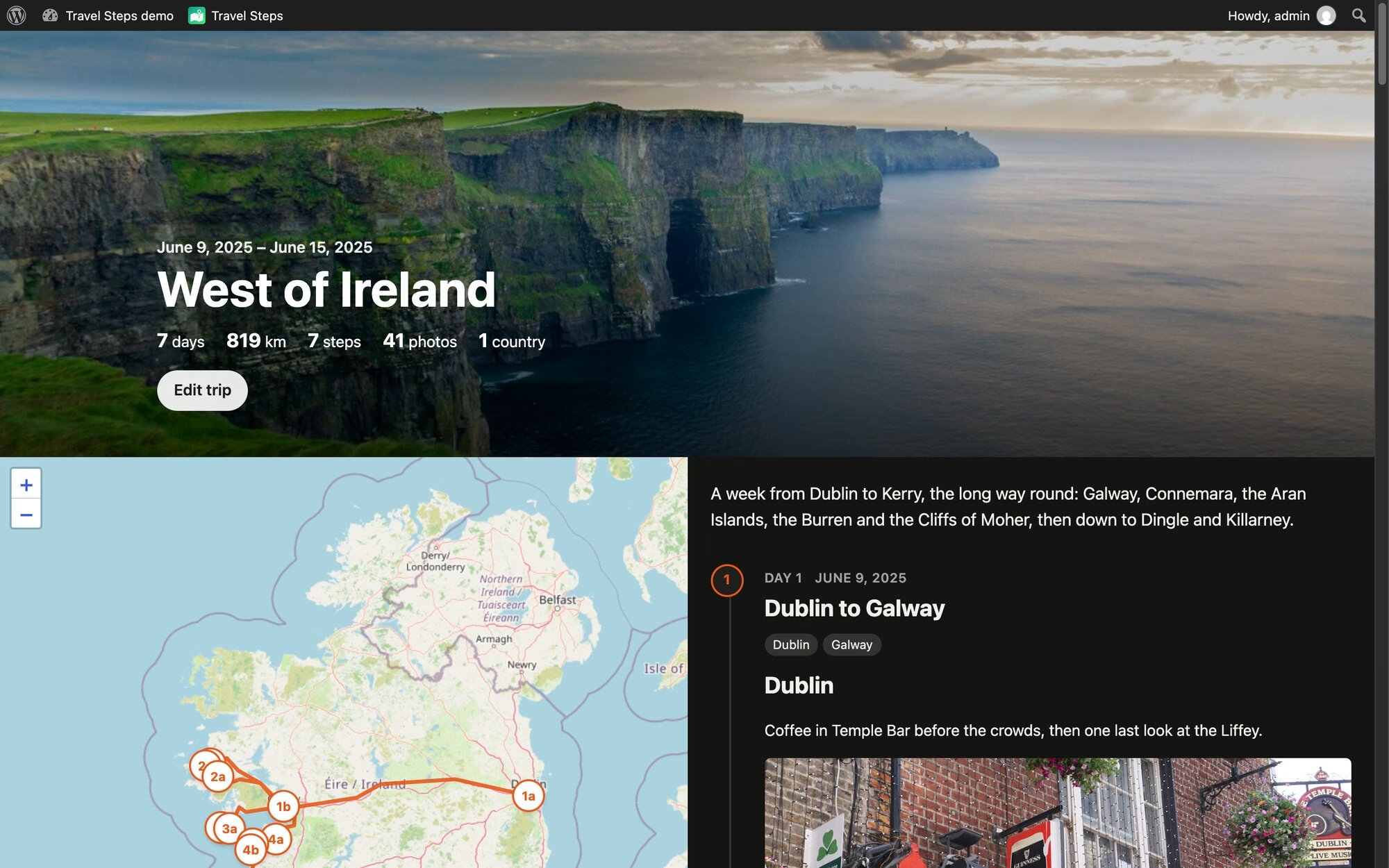
I made a WordPress plugin for my holidays. It’s called Travel Steps, and it turns a trip into a page with a map down one side and the story of each day down the other.
Every photo I take ends up in Immich, on my own server. My phone sends where I’ve been to Dawarich, on the same server. So after a trip I have all the photos and the whole route, sitting in two apps on my private server. The travel apps that make nice trip pages want your photos and your location on their servers. I’d rather keep them on mine.
How it works
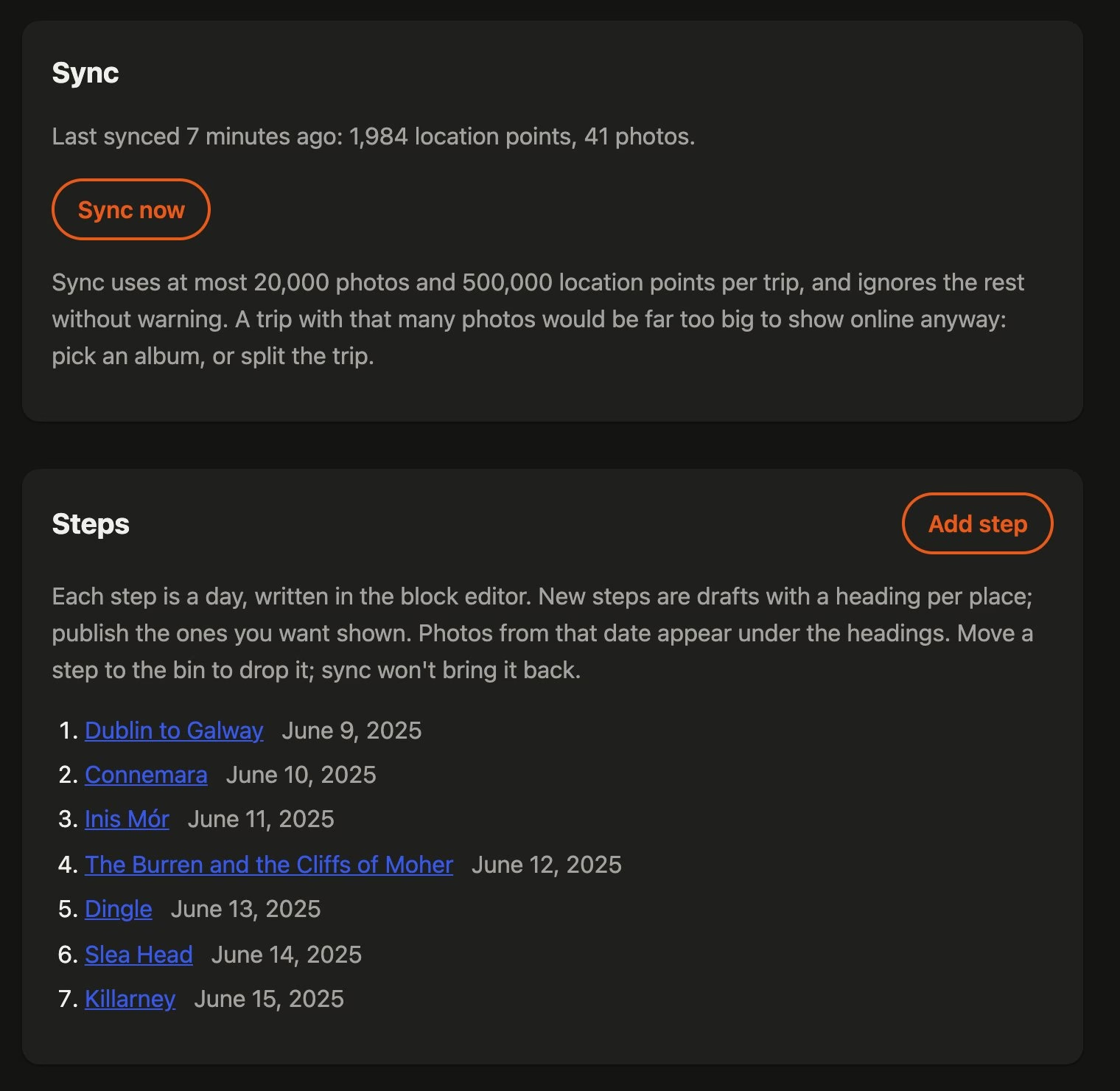
You make a trip, give it a first and last day, and press Sync. Travel Steps asks Dawarich for your location over those days, and Immich for the photos you took. You can pick one Immich album instead. If you don’t use Immich at all, upload the photos to the trip. It will detect the start and end dates from the uploaded photos, or an Immich album too.
One sync, and a step for each day.
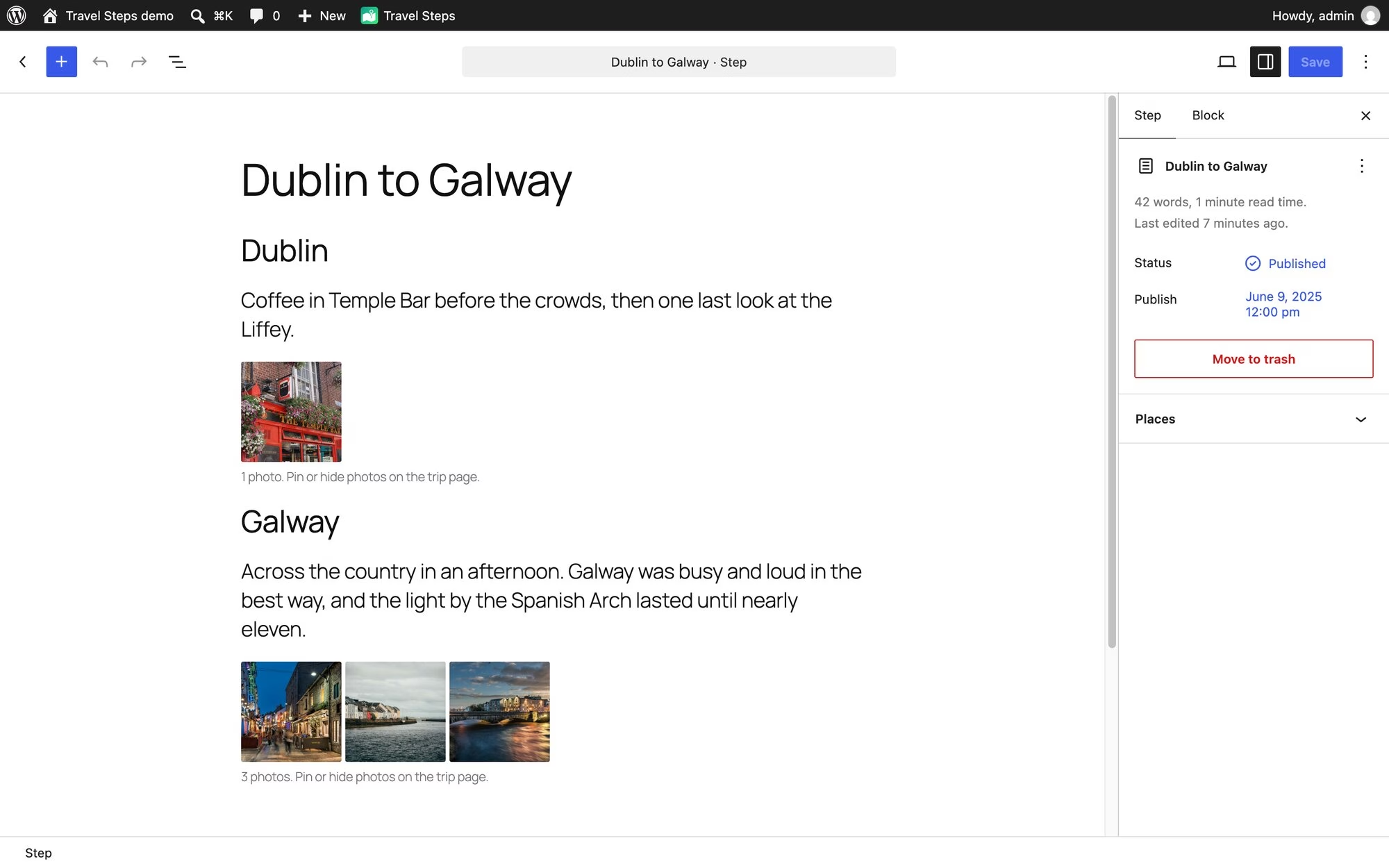
Sync makes a draft post for every day that has favourite photos. Each one is a “step”. It splits the day into places too. A new place starts when a favourite is more than 2 km from the last one and in a different town. Each place gets a heading and a block of photos, so all that’s left is the writing.
Each day is a post you write in the block editor. The photos under each heading come straight from Immich.
Place names come from GeoNames data that ships with the plugin, so naming a town doesn’t send your location anywhere. Immich only names a place from a photo’s own GPS. A photo from a camera without GPS gets placed from your Dawarich history instead, and named the same way.
Publish the days you want people to see. Drafts stay private, and so do their photos.
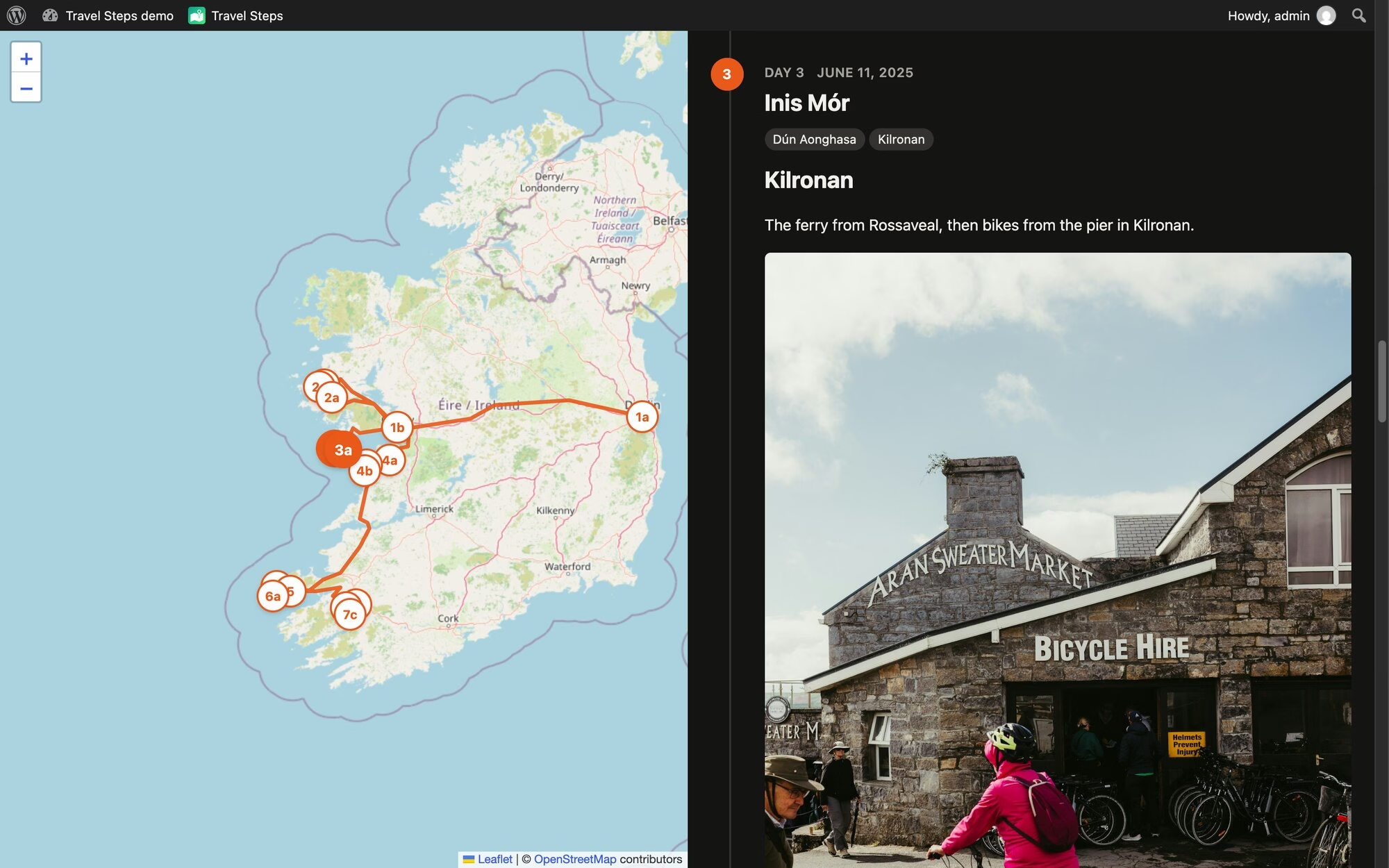
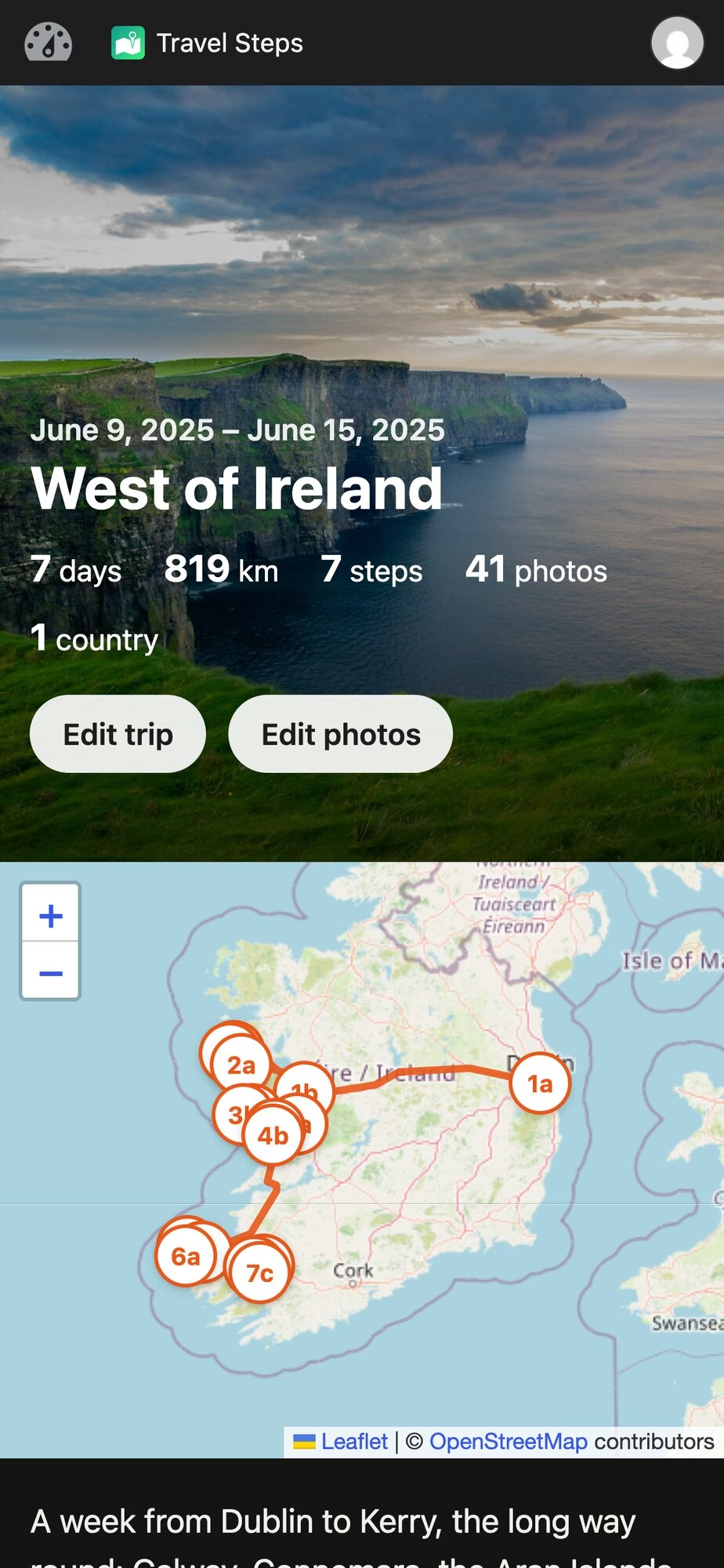
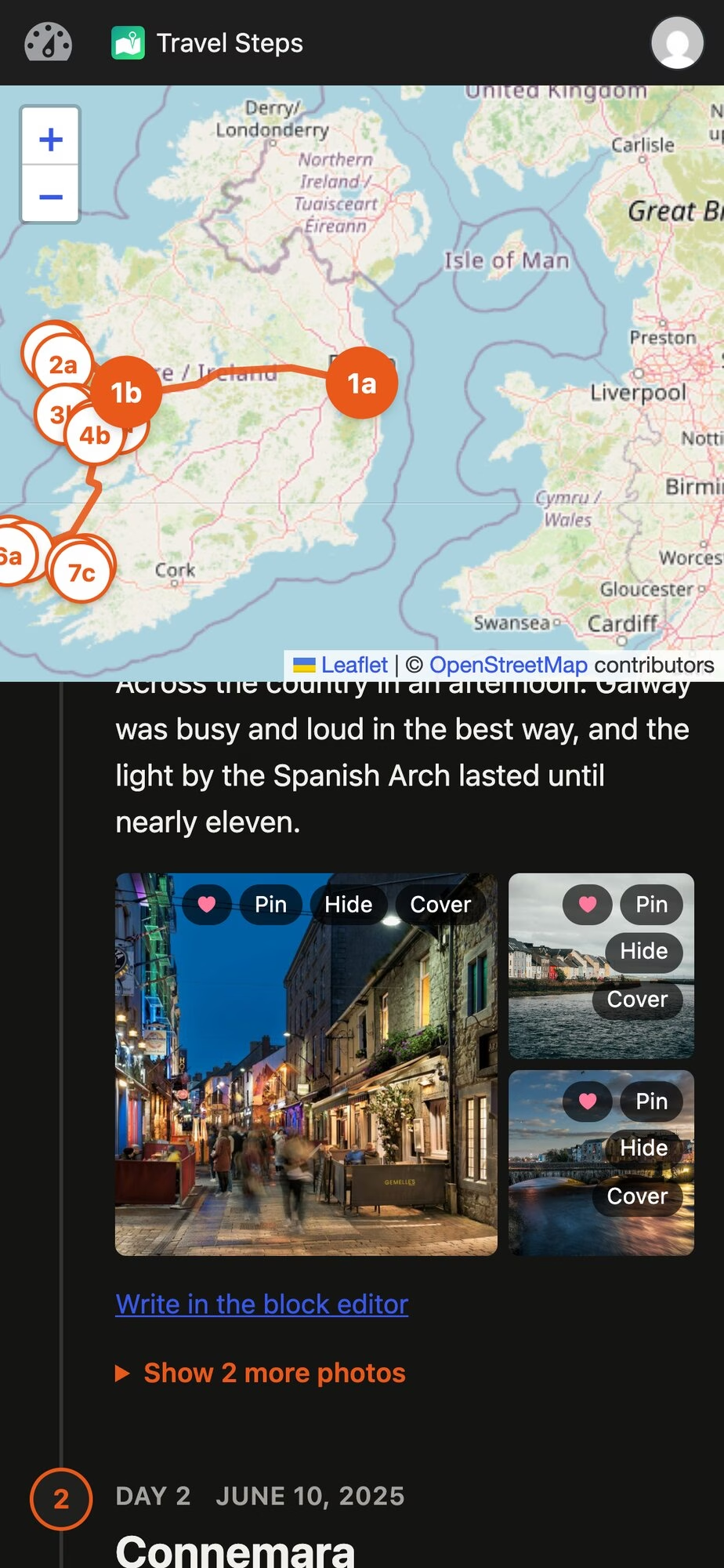
The map follows you as you scroll. Get to day 3 and day 3’s markers light up.
The distance at the top follows the whole route, flights included. GPS glitches that put you in the Atlantic for a second are dropped. Anything you’d have needed to travel faster than 1,080 km/h to reach counts as a glitch. Sorry, Concorde.
Your photos stay at home
Visitors never talk to Immich. WordPress fetches each photo, caches it and serves it itself, so Immich and the original files stay private. It caches a trip’s photos in the background after a sync. The trip keeps working when Immich is down. A daily sweep deletes cached photos older than a number of days you choose, whether a trip still uses them or not, and they’re fetched again the next time someone looks.
Photos you upload to a trip keep their GPS in the original, but it’s stripped from every copy WordPress makes, and only those copies are ever sent. A trip can have a password, and you can let some logged-in people skip it.
Pin, hide, cover
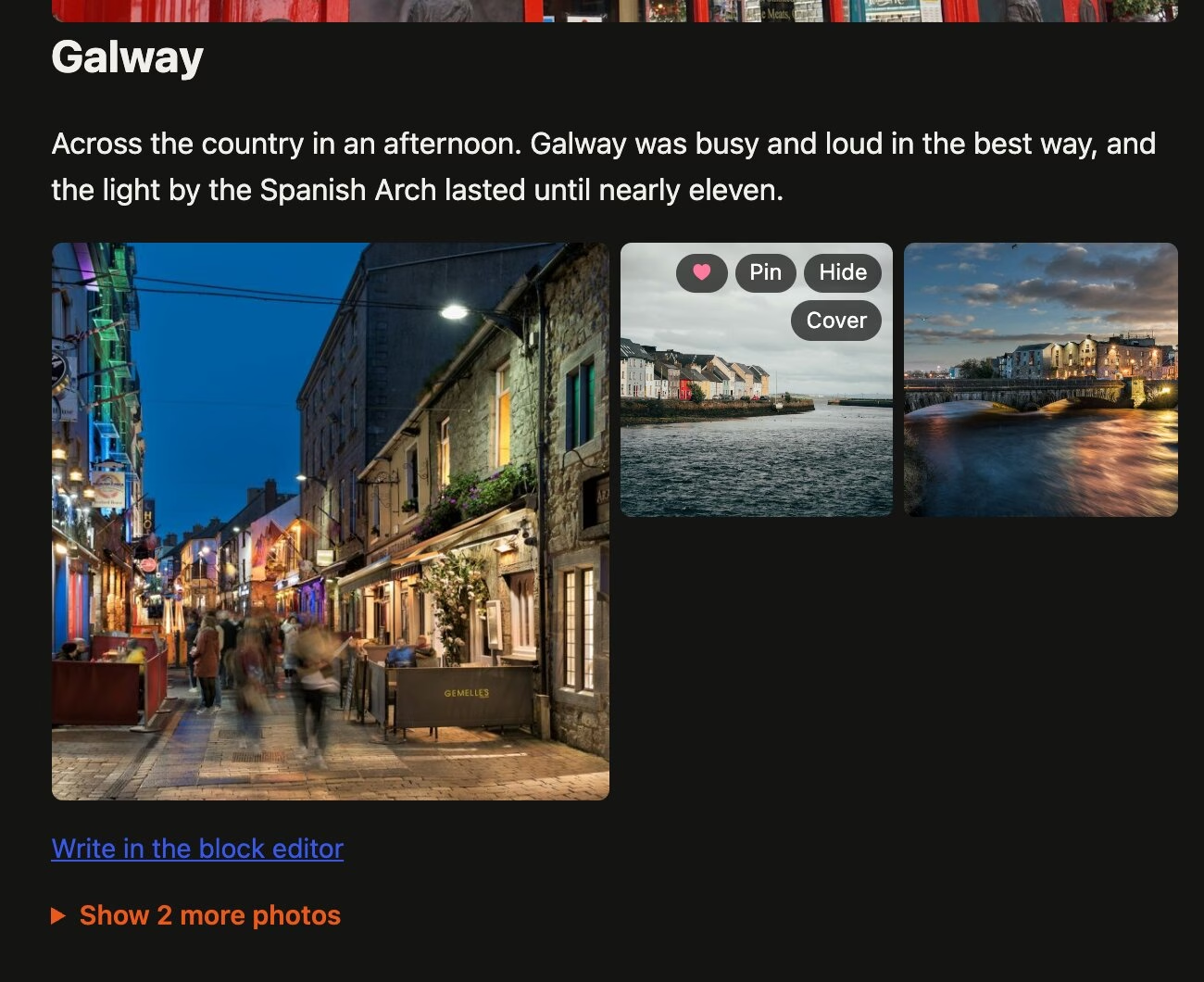
Hover over a photo to pin it (always show it), hide it, or make it the trip’s cover. The rest of the day’s photos sit behind a “Show more photos” link.
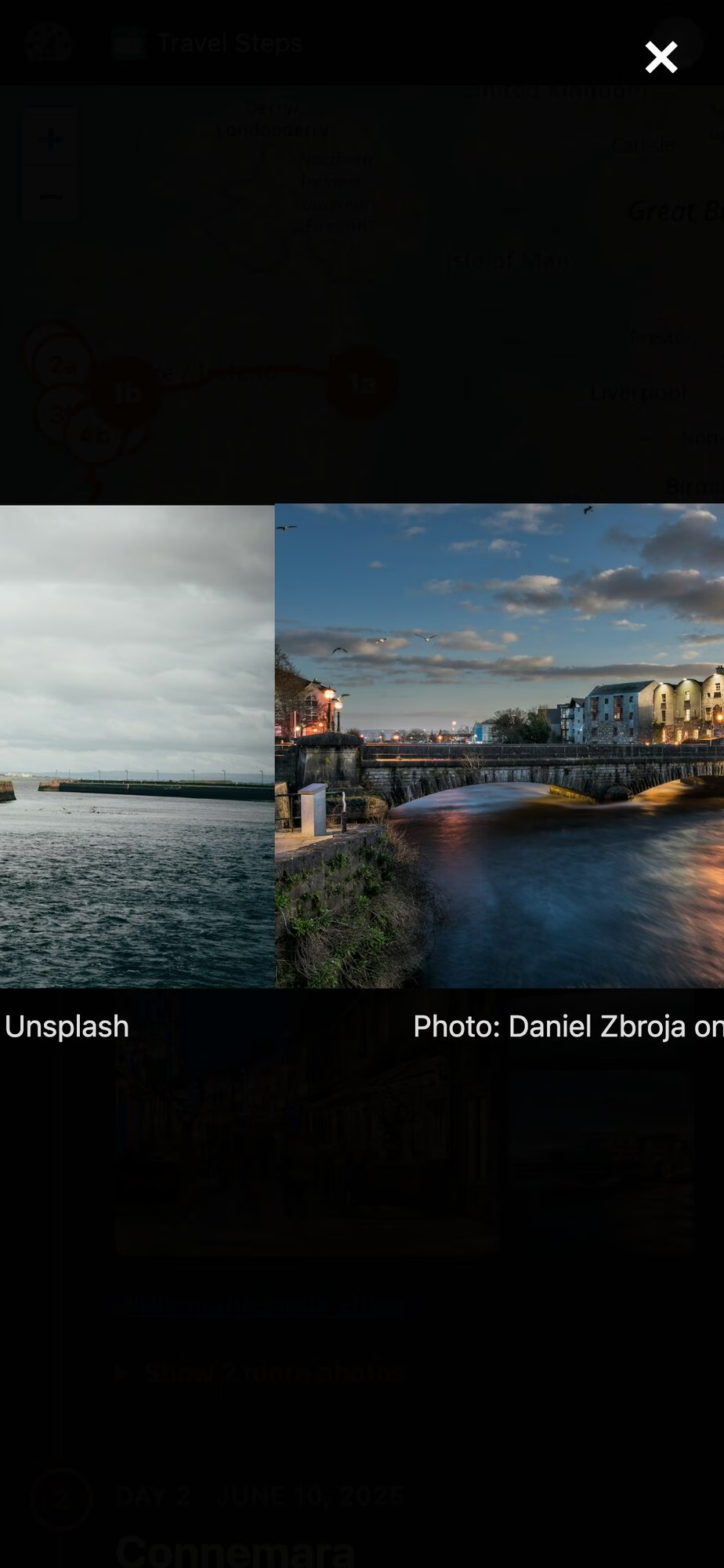
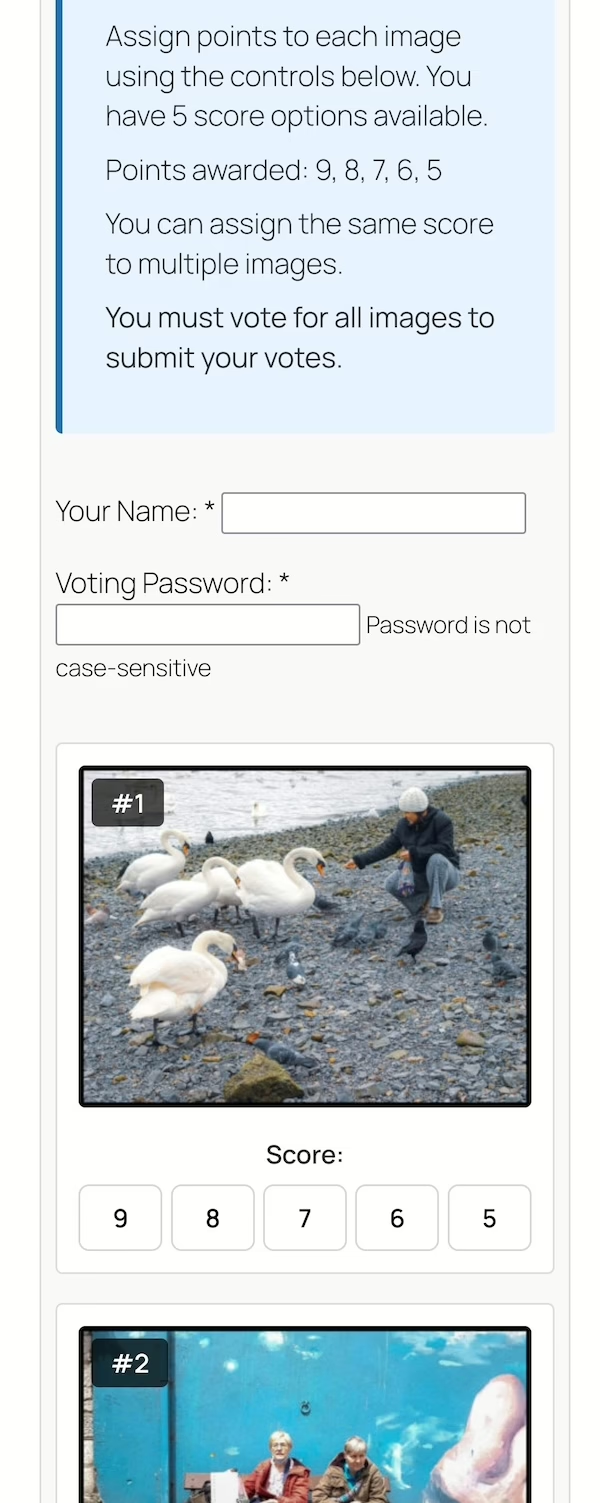
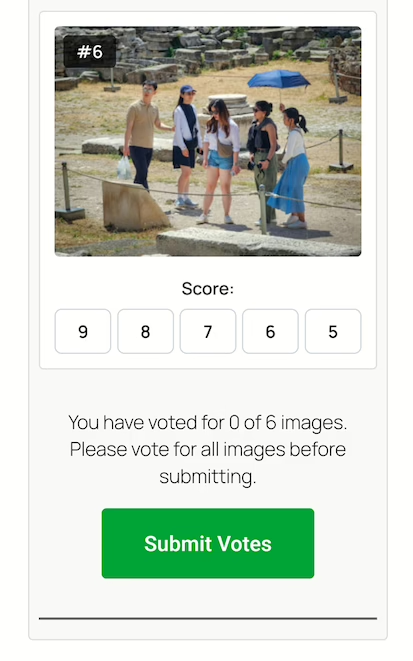
On phones, those buttons show up after you press Edit photos as illustrated by the images below.
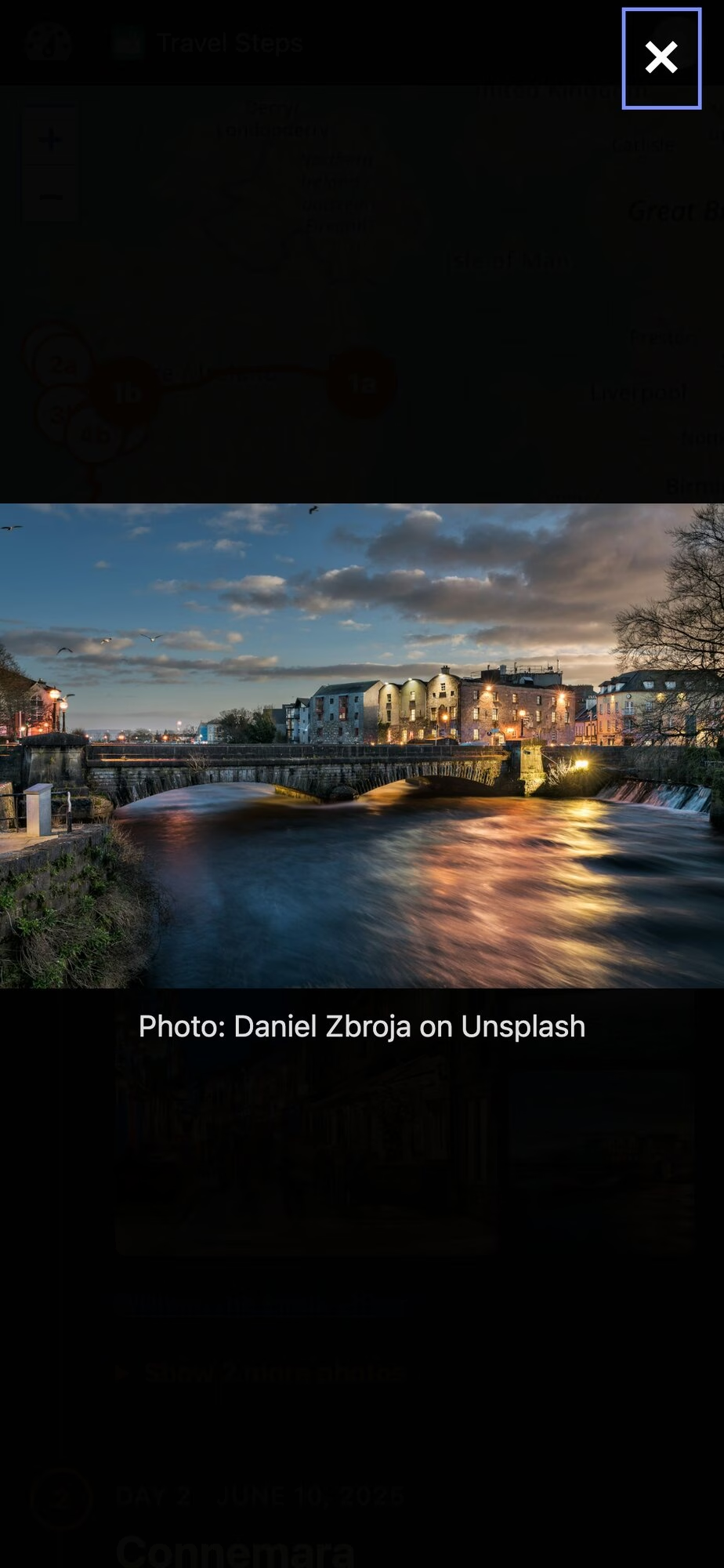
Tap a photo and it opens full screen. On a phone you swipe from one photo to the next, edge to edge. On a desktop there are arrows, and the arrow keys work too.
Try it
Here’s a demo in WordPress Playground. It’s a week in the west of Ireland, running in your browser that installs nothing. Stand-in Immich and Dawarich servers feed the real sync code with photos from Unsplash. You’re logged in as an admin, so press Sync, pin and hide photos, and edit the days in the block editor. It all disappears when you close the tab.
The code is on GitHub. To install it, download travel-steps.zip from the latest release and upload it under Plugins → Add New. It needs WordPress 6.7 and PHP 8.0. Immich and Dawarich are both optional. It has been submitted to WordPress.org but if you read this blog, you’ll know how to install a plugin from a zip file!
WpApp
Travel Steps is built on WpApp, Alex Kirk’s framework for building apps on top of WordPress.
A plugin usually adds screens to wp-admin, or puts its pages inside your theme and hopes the CSS gets along. A WpApp app gets its own URLs instead (/travel-steps/ here), and its pages are plain HTML with no theme in the way. WordPress still does the boring work: users and logins, roles, the block editor, the REST API, cron and the database. WpApp adds the bits in between:
URL routing, using WordPress rewrite rules,
pages that don’t load your theme,
the admin bar on every page, with the app’s own icon (the green map at the top of my screenshots),
access control using WordPress capabilities.
You can start one with composer create-project akirk/create-wp-app my-app. Alex has a showcase of apps built with it, including a cookbook and a family wiki.
Built with Claude Code
I wrote Travel Steps with Claude Code. The first commit was on 11 October, and there are many more now. Most of the work went round the same loop. I file an issue, Claude fixes it test-first on a branch and opens a pull request, and other agents review it. I deploy it to my own server and try it. The tests run in WordPress Playground too, the same as the demo.
If you run Immich, give it a whirl. Bug reports welcome on GitHub 🙂
I’ve just released Media Picker for Immich on the WordPress.org plugin directory. It connects WordPress to a self-hosted Immich server so you can browse, search, and insert your photos and videos into posts without copying files around.
Immich
I run Immich at home. It’s where my photos now live. They’re organised, searchable, with facial recognition and AI search. My WordPress uploads directory is where photos used to go, and the two never talked to each other. This plugin fixes that.
How it works
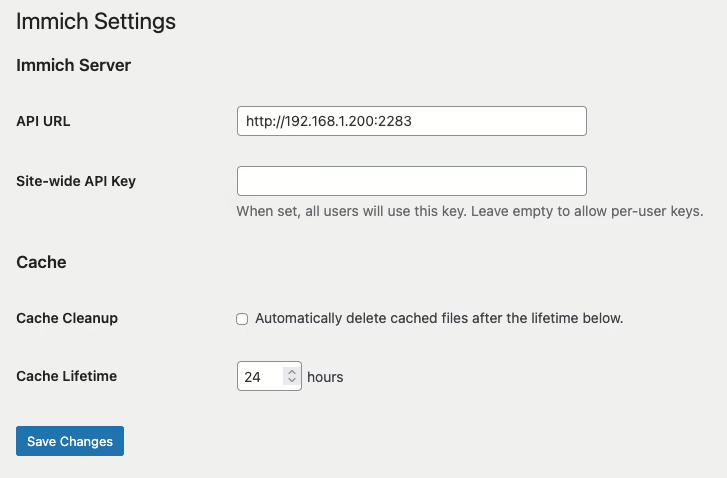
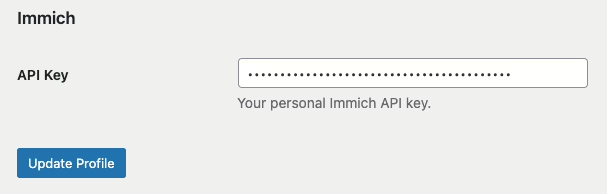
Point the plugin at your Immich server and give it an API key. You can set a site-wide key or let each user configure their own to connect to their own Immich account.
If the site-wide key is blank, each user adds their own key on their profile page. All Immich API calls happen server-side.
Two ways to add media
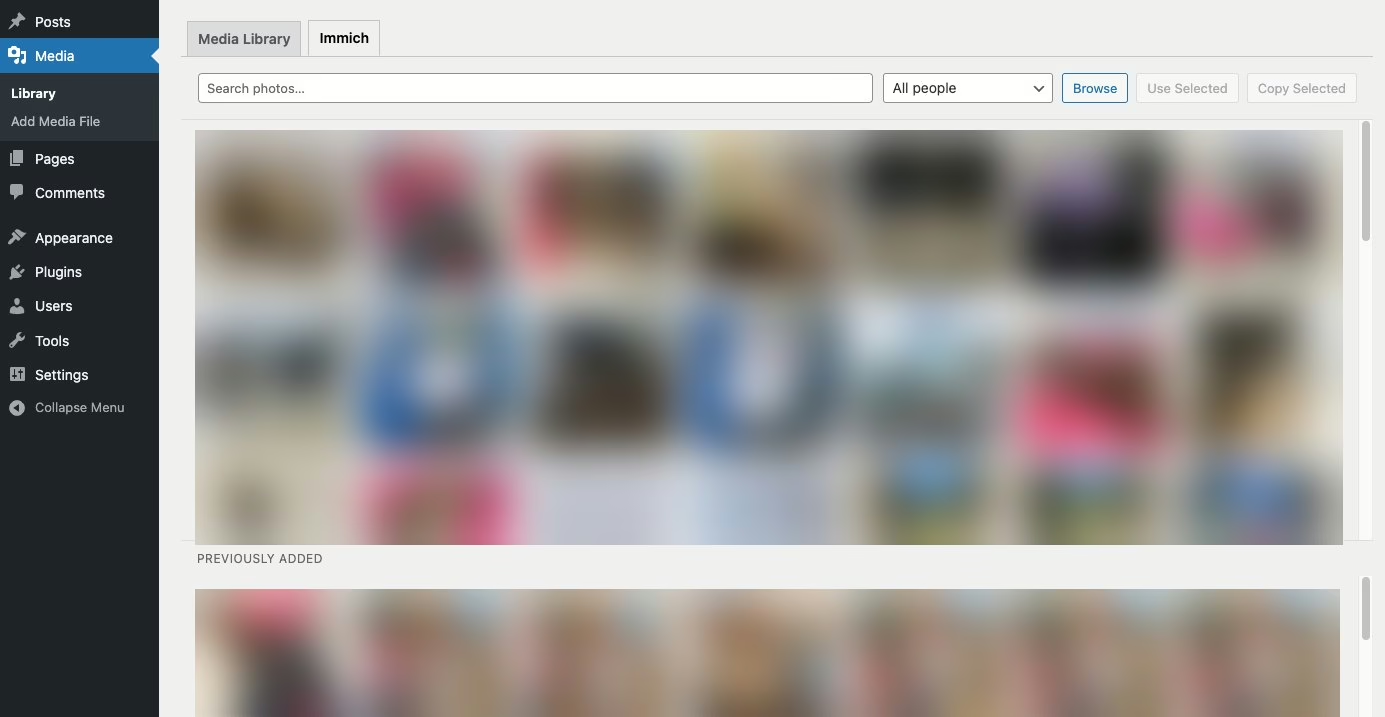
Once configured, an Immich tab appears in two places.
The first is the Media Library grid. Switch to the Immich view and you can search, filter by person, and either Use or Copy assets into WordPress.
Use creates a virtual attachment. Nothing is copied; WordPress proxies the media from Immich on demand and caches it locally on first request. Your uploads directory stays lean.
Copy downloads the original file into wp-content/uploads/ as a normal attachment.
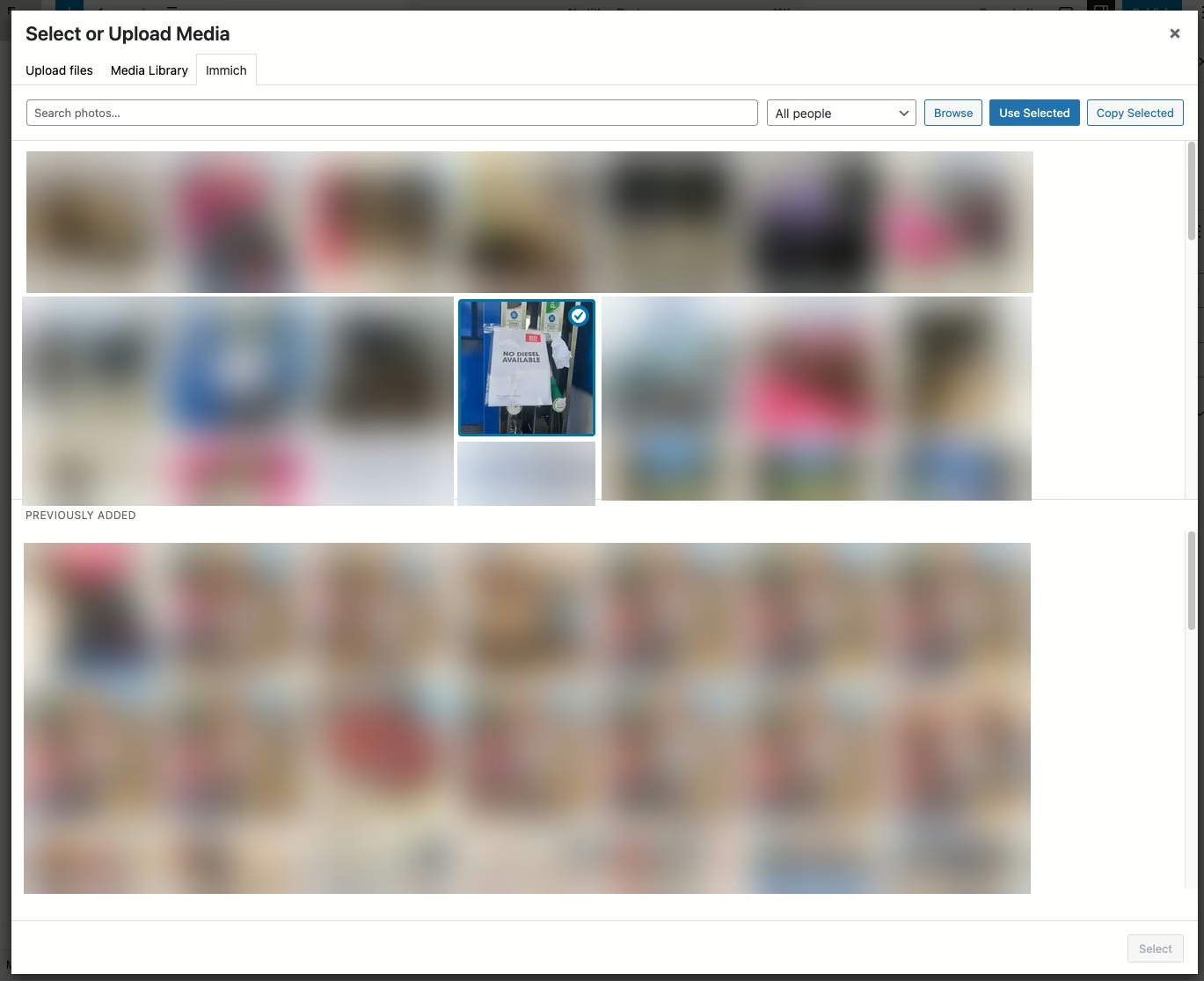
The same tab shows up in the “Select or Upload Media” dialog inside the post editor, so you can pull an Immich photo straight into a post without leaving the editor.
A few details worth mentioning
Videos work too. Proxied videos stream with seek support.
Lightbox. Proxied Immich images in posts open a full-resolution lightbox on click.
Local cache. Proxied media is cached to wp-content/cache/immich/ after the first fetch. Optional cleanup with a configurable lifetime.
Your server stays private. Immich only needs to be reachable from WordPress — not from the public internet. Visitors never connect to Immich directly.
When images are copied over, virtually or otherwise, you can insert them into a post like any other image, which also includes adding them to galleries in posts.
Get it
Install it from the WordPress plugin directory or search for “media picker for Immich” in the plugins page in WordPress.
Feedback and bug reports are welcome. Development is done on GitHub here.
Running a photography club competition used to mean juggling spreadsheets, chasing emails, and manually tallying votes. I built Photo Competition Manager to change that.
This free WordPress plugin handles everything your club needs: member management, secure uploads, flexible voting, and beautiful results displays.
This will suit a photography club that uses WordPress for their website and that has a projector for their meetings. If you already run a photo league with projected images or prints but collect votes from your club members using pen and paper you’re the perfect candidate to try this plugin.
This is the very first release of this plugin. It has been used a couple of times to run several test photo competitions and one monthly league competition. However, bugs happen. I would love if your photography club used this plugin but I will need feedback to improve it. Run a couple of test competitions first to get used to how it works.
Getting Started in Minutes
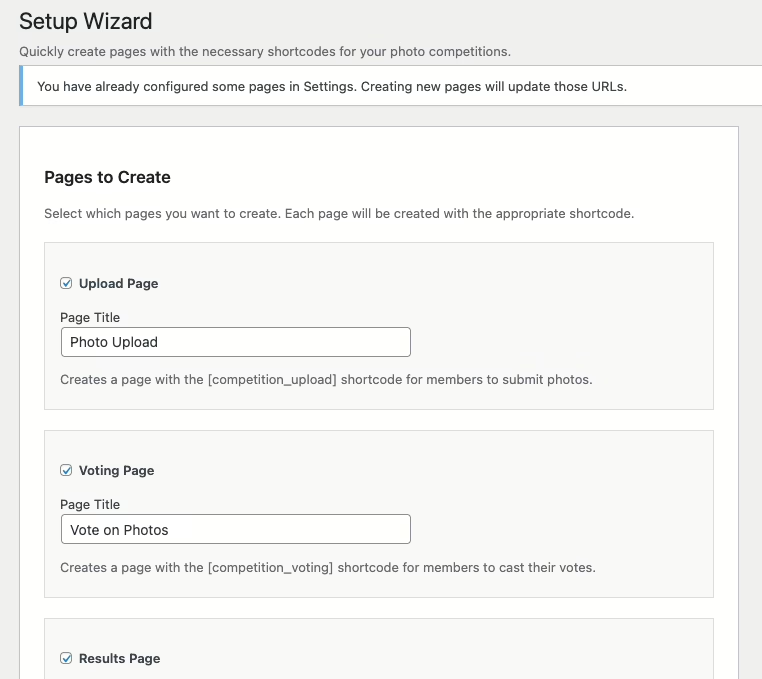
The setup wizard creates all the required pages automatically. Select the pages you need, click a button, and you’re ready to go.
Manage Your Membership
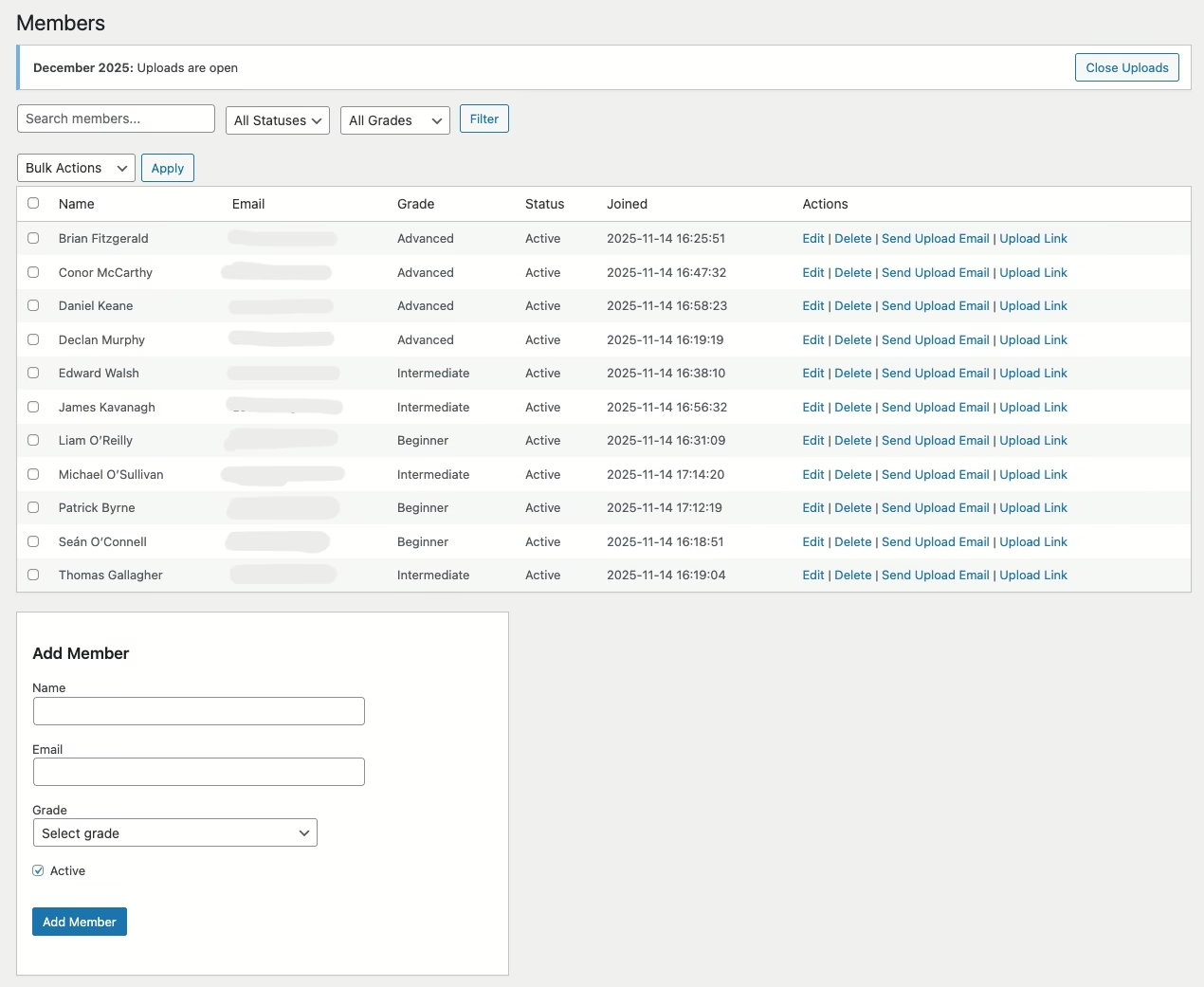
The Members page is your central roster. Add members individually or bulk import from CSV. Assign grades, track status, and send magic-link upload invitations with a single click.
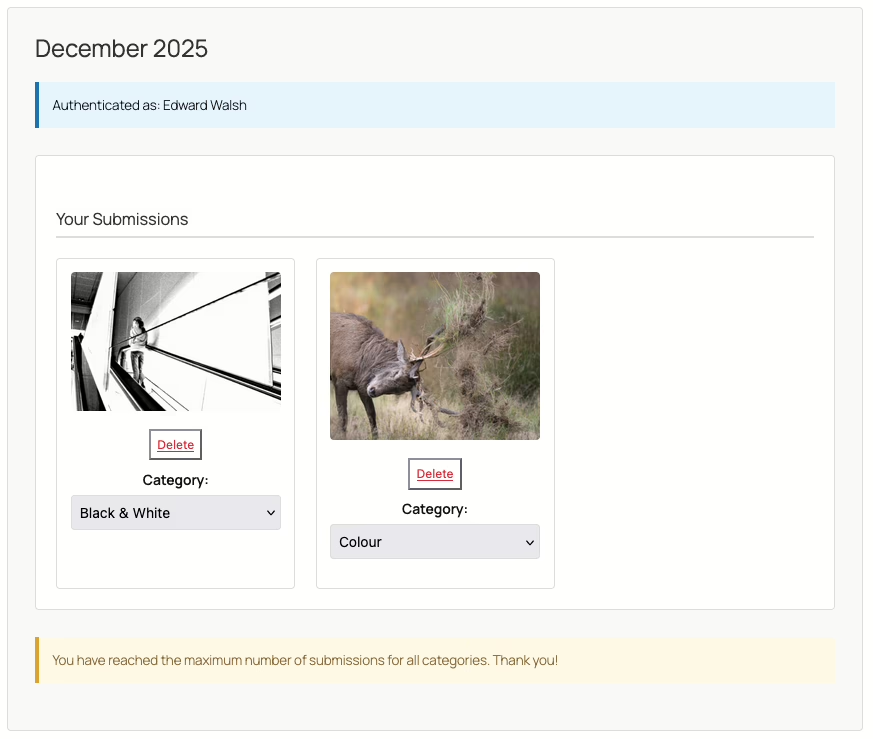
Each member gets a unique upload URL—no passwords to remember, no accounts to create. They click the link and upload.
Create and Track Competitions
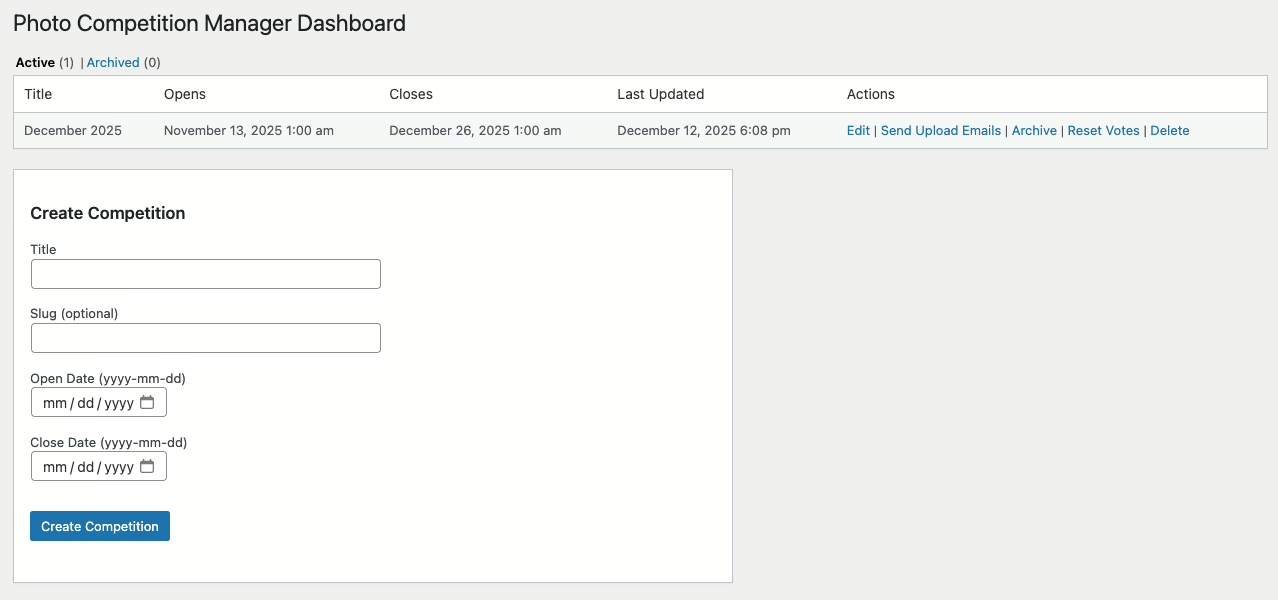
The competitions dashboard shows a list of competitions, allowing you to edit them and send out upload emails to members. Only one competition may be active at a time, but a competition may have more than one category.
Create competitions with custom categories (Colour, Mono, Projected, etc), grade divisions (Beginner, Intermediate, Advanced), and submission quotas. Each competition can have its own rules without affecting your defaults.
Watch Submissions Roll In
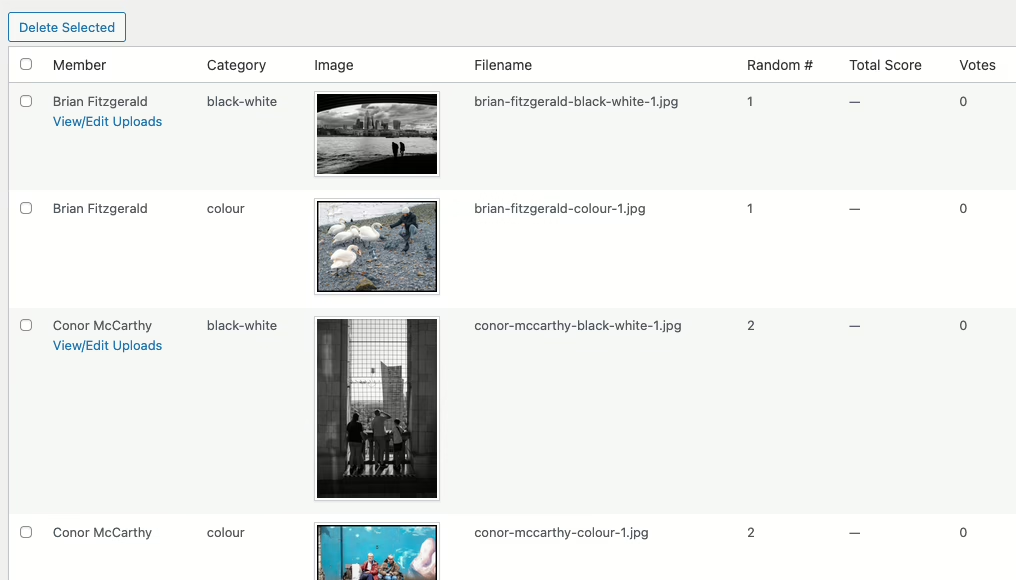
As members upload, the submissions page displays thumbnails of every entry. You’ll see who’s submitted, which categories are filling up, and whose photos are still missing.
A Frictionless Upload Experience
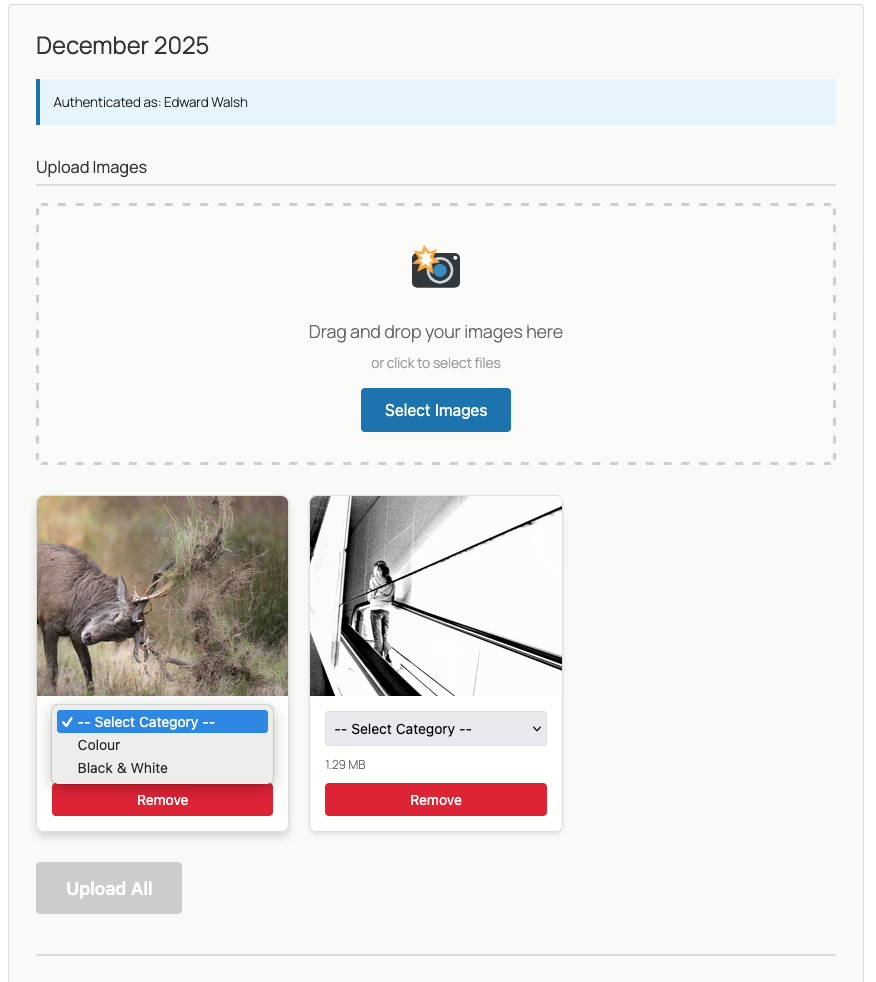
When members click their magic link, they land on a clean upload form. They select their category, choose their image, and submit. The progress banner shows upload status in real time.
The plugin handles validation automatically—file types, dimensions, and quota limits are all enforced before the image is accepted.
Complete Control Over Voting
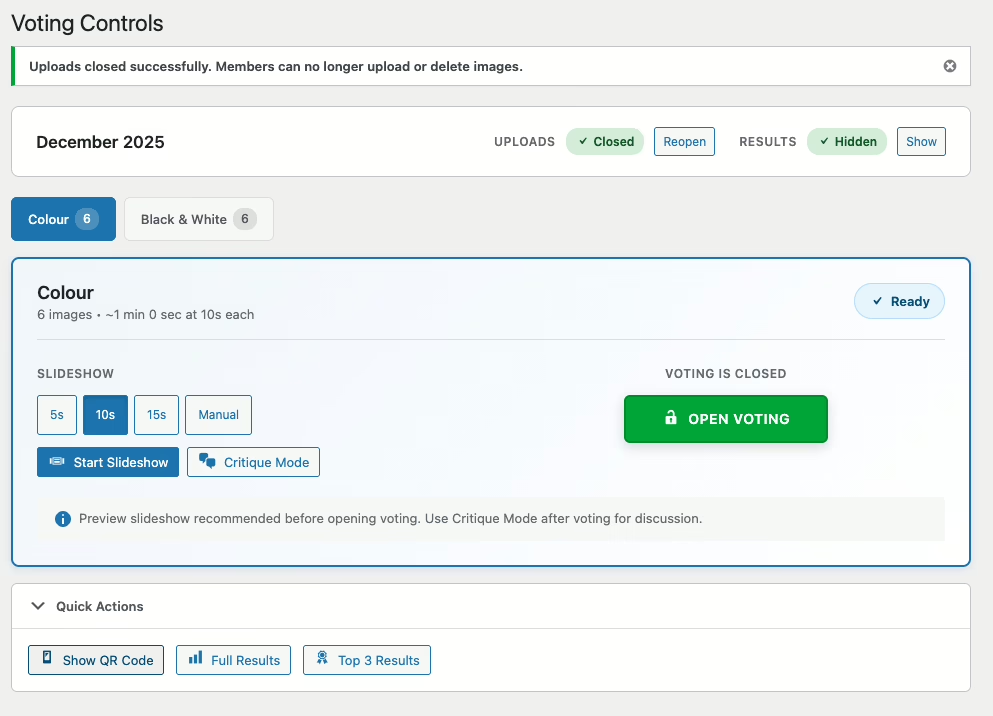
The voting controls page is your competition command centre. From here you can:
Open and close voting for each category independently.
Toggle the results display on or off.
Enable slideshow mode for in-person club nights.
Disable uploads once the submission deadline passes.
Show a QR code for members to scan with their phones to vote.
In the competition settings, you choose between token-based voting (unique links per member) or password-protected public voting. The voting controls page features a full-screen slideshow mode where members can vote together during meetings.
On the night of the competition we do the following:
Close uploads and hide results.
Show the slideshow with a 10 or 15-second delay as a preview.
Display the QR code and make sure every member can scan it and open the voting page.
Open voting and show the slideshow again.
When everyone has voted, close voting.
2 members of the club will then go through the images and offer a critique, using the slideshow again but in manual mode this time.
Repeat for the next category.
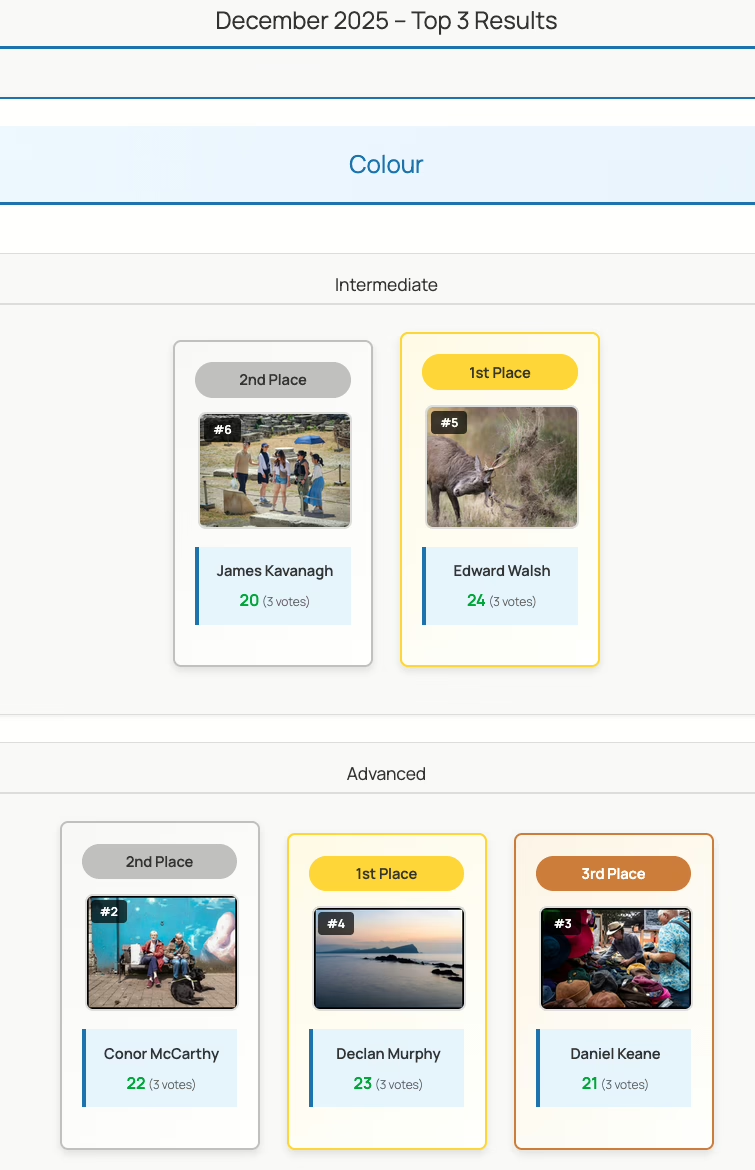
When all the voting is done, toggle the results page on and display the “top 3” results, and then the anonymous results page on the projector.
Finally, an email is sent out to all members showing their score, ranking in their grade and the votes they received. Names are not attached to the votes for obvious reasons.
Voting By Phone
Members can vote on the competition using their phones after they have scanned the QR code on the voting controls page.
Results That Make Sense
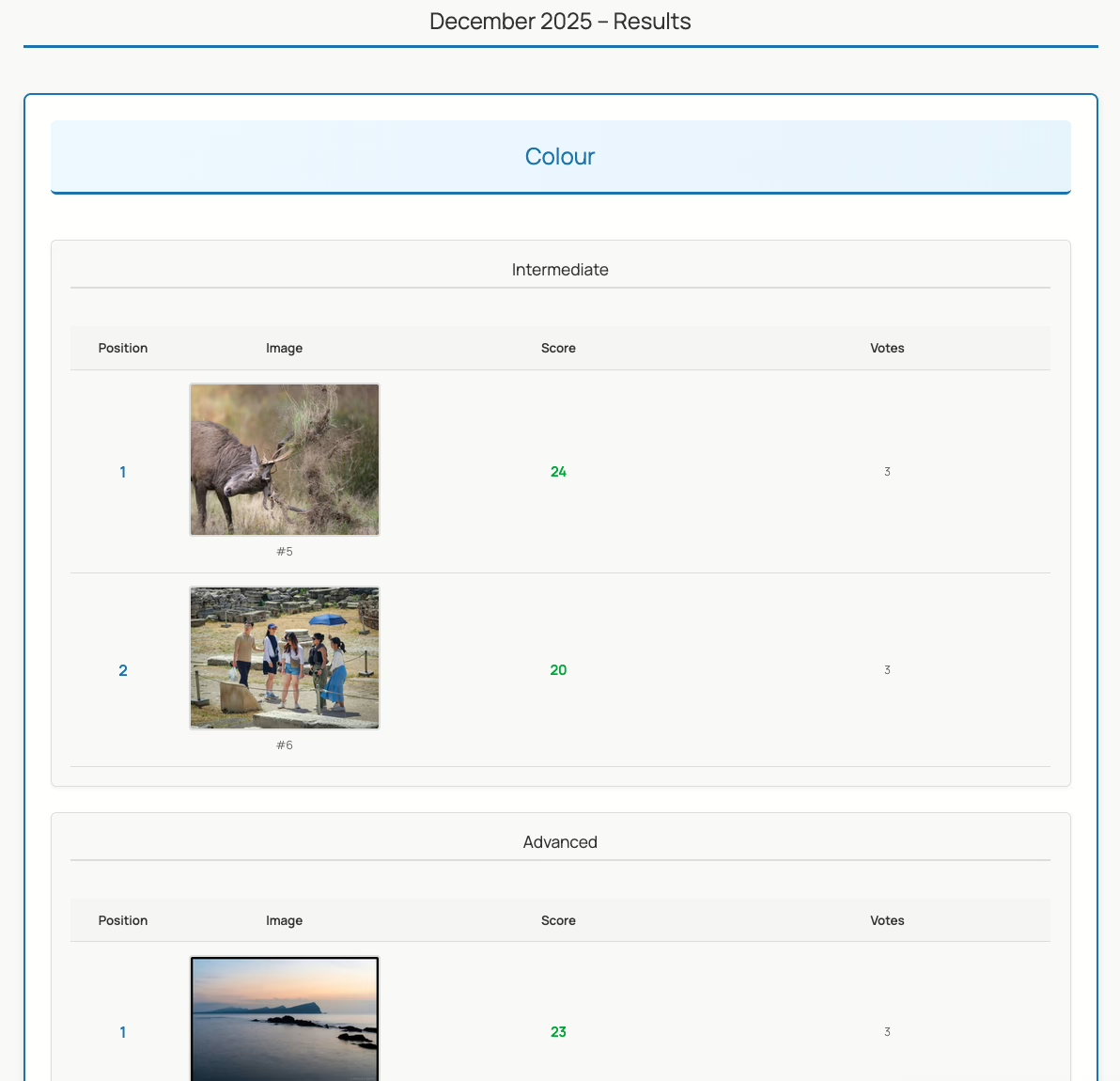
When voting closes, the results dashboard breaks down every score by member grade. See vote distributions, identify your winners, and export everything to CSV for your records.
The frontend includes a responsive top-3 podium display perfect for announcing winners, plus full results tables with filtering by grade and category.
Built for Photography Clubs
Photo Competition Manager was built specifically for the way camera clubs actually run competitions:
Magic-link authentication means members don’t need WordPress accounts to upload.
Grade-based scoring supports clubs that split their membership by experience level.
Slideshow mode turns any screen into a projection-ready display.
CSV export keeps your archives intact.
Get Started Free
Photo Competition Manager is free and GPL. Install it from the WordPress plugin directory or from the plugins page on your WordPress site in the usual way. Navigate to the Competitions menu to get started.
The Speculative Loading plugin for WordPress is a plugin you should probably try out on your site, especially if you use WP Super Cache or Jetpack Boost to cache things. It uses the new speculation API that Chrome/Edge supports to load pages in the background if you even hover over a link.
It will dynamically prefetch or prerender pages before they’re requested by the visitor on your site, which means that the page will show instantly when the visitor actually clicks the link.
It doesn’t work in Firefox yet, but it won’t hurt either, as the browser will just ignore the extra bits and pieces added to the page.
The default “moderate” eagerness works fine for me. The “eager” setting appeared to load links if the cursor got anywhere near them, which was a little too aggressive.
You won’t notice your browser loading the page in the Network tab of the webdev tools, but if you tail your access_log, you’ll see the requests go through when you hover over the links.
Browse around this site, or take a look at my photoblog for a feel of what it does.
There’s more info in the make blog post about it, and this insightful comment about the wastefulness of loading pages that might not be used, especially for visitors on limited data plans, or low powered devices. That’s definitely something to think about before using this plugin. I may yet remove it later, and I’ll update this post if I do.
Today saw the release of updates to two plugins I work on. The first, unsurprisingly, is WP Super Cache, and it’s a bug fix release. It fixed a PHP8.2 warning, adjusted some labels on the settings page, solved a problem with “late init” and POST requests, and some other changes, but the major news I want to share is not about that plugin at all.
I’m on the Jetpack Boost team in Automattic, and for the last month or so, we’ve been working on adding a full-page cache to the plugin!
Jetpack Boost is already a pretty remarkable plugin, with what it does to CSS, JavaScript and images, so a page cache was an obvious next step.
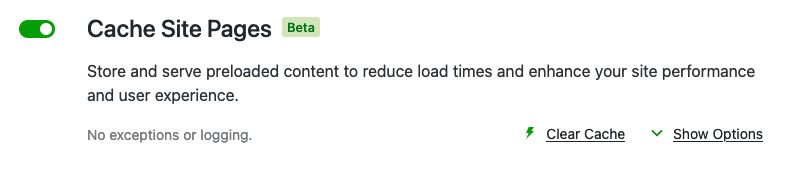
If you’re already using WP Super Cache, but you’re not using any of the advanced features, I think you should give Jetpack Boost a go. It works really well at serving cached pages fast. Jetpack Boost will be a drop-in replacement if you have these features enabled in WP Super Cache:
Simple caching
Caching Disabled for logged in visitors
Garbage collection set to one hour.
You’ll have to disable WP Super Cache first before trying Boost Cache, as they both rely on the same mechanism to load. Disable Jetpack Boost to go back to WP Super Cache. You can enable Boost again, without using the Cache module, and the two plugins will happily co-exist.
I’ve been using it here for the last two weeks, and it has worked flawlessly. I post images daily on my photoblog, and they get shared to Mastodon, where the expected deluge of requests from hundreds of servers happens each time. Between Jetpack Boost and WP Rest Cache, my server barely noticed. Just like with WP Super Cache.
“If it performs just like WP Super Cache, why should I use Boost?” I hear you asking. For some, you’ll need the extra features of WP Super Cache, but otherwise, Boost may be just what you need. Apart from the cache, it also has remarkable features that will squash your CSS and JavaScript in various ways that load super quick. Give it a go, and let WP Super Cache handle the cache if you need to.
If you’re still here, read on, and I’ll give you a whirlwind tour.
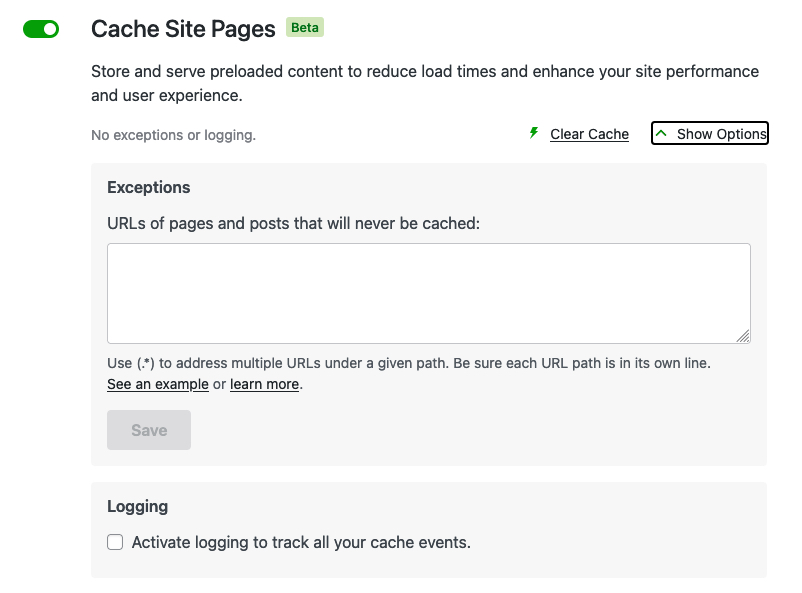
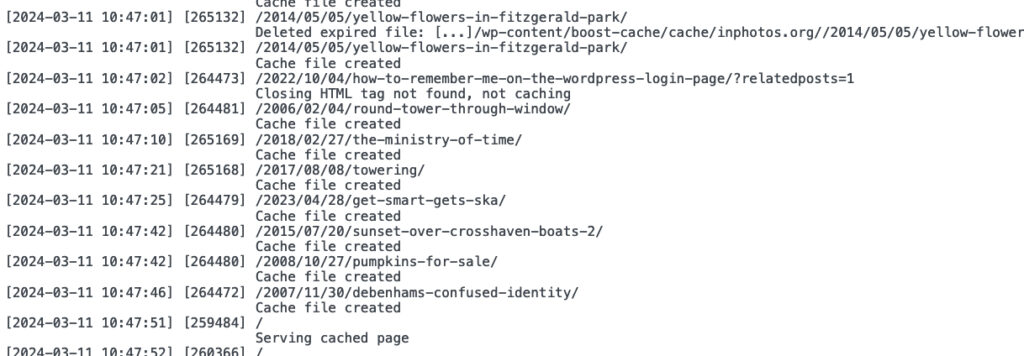
Boost supports an exception list like WP Super Cache does, and logging of activities in a similar, but easier to use way.
To simplify caching, only requests by logged out visitors are cached now, but that’s the recommended way of using WP Super Cache too.
Developers: like WP Super Cache, it also supports the “DONOTCACHEPAGE” constant. If you define that while a page is being created, then Jetpack Boost won’t cache it. If you can enable it before the page loads, then the plugin won’t serve a cached page either, but that will be difficult since the cache system loads so early.
To learn more, there’s a fine manual to read. It explains in detail how to enable the cache and how to use it. Yes, I’m biased, but I think you should give Jetpack Boost a go! Caching helps a lot, but the extra CSS and JavaScript features help render the page quickly once loaded.
What does that even mean, though? WordPress is the community of people who have built it and contributed to it over the last two decades, and before that, when it was a little known blogging package called b2. So, thank you so much to everyone who has contributed to WordPress over the years.
WordPress has given me, and countless others, many opportunities we couldn’t have dreamed of. Just over two years after WordPress was first released, I joined Automattic. Working on two machines, Matt and I started work on the first WordPress.com. Here I am, almost 18 years later, and still working on WordPress related software. What a journey. Matt marked the occasion by announcing a generous scholarship programme. Matt was also on stage in London with Mike Little and Dries Buytaert last week in a conversation I must listen to yet, but I’ve heard some good things about it WRT Gutenberg.
Anyway, it’s almost midnight here, but I wanted to get some words down on this blogging platform we all love. May we all be here for the next twenty years.
Oh, and before I go, you can hear me say a few words about meetups at Automattic in the latest episode of the Distributed podcast. It’s edited well, that’s all I’ll say!
Earlier this month I noticed that a particular bot that likes to visit my website, “MJ12bot/v1.4.8” seems to be particularly attracted to the “reply to comment” links generated by my blog. Those are links that bots see, but we see the “Reply” button that uses JavaScript to reply to a comment.
To be honest, it’s pretty annoying to see a bot constantly fetching those URLs from my website. Earlier this month, it was on a roll and grabbing several dozen at a time. While my server can handle the traffic without any issues, who wants a bot trampling over their server?
I decided to stop them in two ways:
Redirect them back to the post in a mod_rewrite rule.
Block them in robots.txt and hopefully the bots will go away.
Coming up with a mod_rewrite rule was surprisingly hard, but after mentioning this on Mastodon I received a reply from Jos Klever who figured out I needed the QSD flag. So, to spare you the hassle of researching it, here are the mod_rewrite rules that worked for me. It causes a 301 permanent redirect to the anchor tag of the comment. Add this to your .htaccess file.
Blocking requests like this in the robots.txt is much simpler. WordPress can generate the robots.txt file for you using the robots_txt filter. Add the following to a mu-plugin PHP script.
I haven’t received many comments on my posts lately. However, I stumbled upon some interesting posts by clicking the RANDOM link above, which I decided to examine as part of my research. During my search, I delved deep into the blogosphere of the past, almost like being an archaeologist, because some links were no longer available, and I had to search for them on archive.org. I was also pleasantly surprised to find that a link to a GIF from 2005 was still alive!
You might not be on Mastodon yet, but your blog could get a torrent of traffic from Mastodon, or other Fediverse network if it’s shared there.
If your website is mentioned there, it might be the “victim” of an inadvertent denial of service attack, as hundreds or thousands of servers request the URL in the 60 seconds or so afterwards. That is precisely what JWZ blogged about last month when his site was taken down by Mastodon servers.
Every time I do a new blog post, within a second I have over a thousand simultaneous hits of that URL on my web server from unique IPs. Load goes over 100, and mariadb stops responding.
JWZ has over 8,000 followers. Every time he shares a post on Mastodon, the instances (servers) where those followers live will send a request to his blog to generate a preview. Actually, two requests will be sent:
A request for the wp-json embed for the page.
A request for the page that was shared.
Eventually, he blocked the Mastodon user agent. That stops previews of his website showing up on Mastodon posts, but resolves the problem for his website.
Yesterday morning, I decided to see what effect sharing a link on my Mastodon account would have on my server. My Mastodon account has 1.8K followers. A far cry from the number of followers JWZ has, but still enough to test my server.
I wanted to test several scenarios:
Caching the post before sharing.
Changing Apache configuration.
Sharing without caching on my server.
My server is at Linode. I pay an average of $24/month to run this site and my photoblog is on it too where I share a daily photo + link on Mastodon. It’s not a heavy-duty server that can withstand a huge amount of traffic.
If you’d like to skip the details, my server coped fine with sharing a URL from here to Mastodon. The load average went up for about 20 seconds, topping out at the max for about 5 seconds before things calmed down. It was responsive the whole time. Install a full-page caching plugin like WP Super Cache, Jetpack Boost and WP Rest Cache and your site will probably be fine. Jetpack Boost and the Jetpack Image Accelerator will help when human visitors arrive.
1 minute load average topped out at 1.34 for 5 seconds.
The page was cached by WP Super Cache, but I had set the garbage collection TTL to 60 seconds and I believe it expired halfway through the test, so it had to generate the cache again. Once I adjusted that, and set the TTL to 600 seconds, the second test performed better. The page remained cached throughout:
273 requests for the page embed.
289 requests for the page itself.
1 minute load average topped out at 0.71 for 5 seconds.
The main points of my Apache configuration:
Keep alives are disabled.
5 start servers
Minimum 10 spare servers
When I reduced the start and minimum spare servers to 1, the next test took longer to complete, and the load average rose to 1.24, even on a fully cached page. This was expected as the server didn’t have the spare capacity to deal with the sudden traffic.
After reverting the changes to Apache, I disabled caching on my blog and shared another URL. The load average only rose to 1.12 for a very short time. I was pleased with that. While caching does help, my server could cope with that traffic.
A sample of the user agents used by Mastodon instances hitting my blog for previews
I suspected that there was one hit per Mastodon instance on my site. I checked my logs and was proved right. For all the accounts that follow me on mastodon.social, only one request was made. That does mean the onslaught of requests isn’t as bad as it might be. Instead of 1,800 requests for a page, there were far fewer. I did notice that a Friendica instance requested one of my test URLs several times.
Mastodon and other Fediverse servers will start requesting a preview within a second of you sharing your post on the network. It helps if your server is running some sort of caching.
If you have many Mastodon followers or if you’re worried about a DDoS from Mastodon, the following will help:
Make sure Apache/Nginx has the spare capacity to grow quickly and respond to a sudden torrent of requests.
Use “expert caching” in WP Super Cache which serves the cached page using mod_rewrite. That will mean your blog post is served almost as fast as requesting a text file from the server. No PHP is executed at all.
Install WP Rest Cache as it will soon cache the embed page request.
Install Jetpack and enable the Image Accelerator and Jetpack Boost for human visitors who come later.
This problem has existed for a long time. Popular blogs had the same issue when they published new content and people following their blogs (through RSS feed readers, remember them?) hit the server looking for the new post. At least with Mastodon, you can load the post in a private browser window and cache it before sharing it. I want to write a WP Super Cache add-on plugin that allows the site owner to preload a new post as it’s published. That will ensure the new content is ready for sharing. I haven’t started work on that yet, so don’t ask when it’ll be done. Maybe someone else will beat me to it and claim all the credit!
Before we start, do you know what Mastodon is? It’s sort of like email, where you can send an email from gmail.com to a yahoo.com account, except it looks very like Twitter. This pcmag article is a good introduction to it. Jeff Jarvis wrote a good post too, and Time Magazine interviewed Eugen Rochko, the founder of Mastodon that you should read.
This weekend, a probably sizeable chunk of #IrishTwitter migrated to Mastodon. We’re not the only ones. Twitter has been getting more hateful and acting as an echo chamber for lots of horrible people over the years. The sale of Twitter to Elon Musk, the firing of half the staff, his pronouncements of “free speech” all point towards the site being less regulated, less maintained and less moderated. You can’t deal with complaints if there’s nobody there listening to complaints of harassment or hate.
(No we didn’t)
I don’t doubt that many of us will continue to visit and contribute to whatever Twitter becomes. Over the last few years, most of my interactions there have been publicising my blog posts. All I could see on there was angry tweets from different people, or people who were broadcasting their top ten ways of doing X, Y or Z. Hardly any actual conversation.
So, Mastodon. I woke up early on Saturday morning and discovered there was a #TwitterMigraton to Mastodon. I already had an account on mastodon.social but Irish Twitter was moving to mastodon.ie, and that’s where I went too, creating @donncha@mastodon.ie.
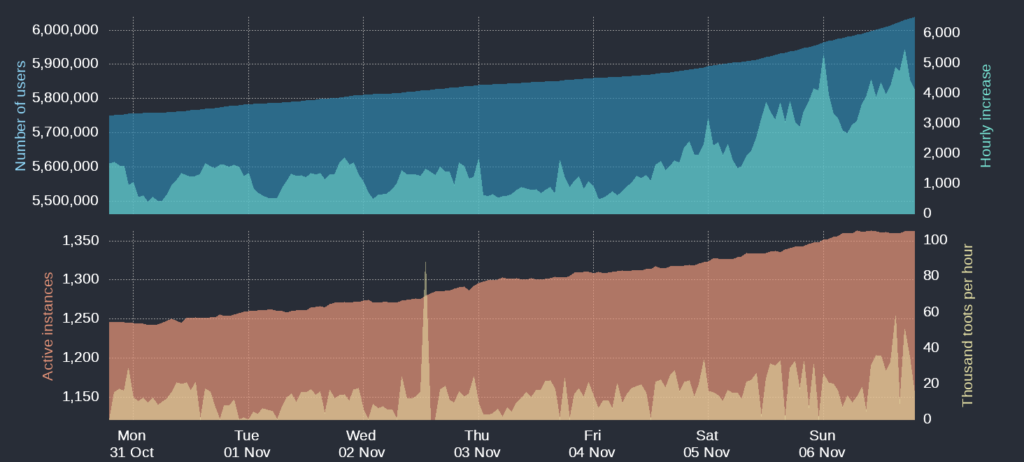
Judging from what I’ve read elsewhere, all mastodon instances are experiencing a HUGE surge in user registrations as people look for an alternative to the stinking sinking ship that is Twitter.
On Saturday, the admins of mastodon.ie ran into performance difficulties as they dealt with the influx of new users. The site slowed down and people couldn’t upload images. Over 6,000 people are on that instance now.
Remember the early days of Twitter?
The admins increased their hosting plan, eventually maxing out at the top tier. To pay for hosting they asked for donations. Right now they have raised over €4100!
How do I add my WordPress blog to Mastodon?
It’s mostly straight forward. Install these two plugins:
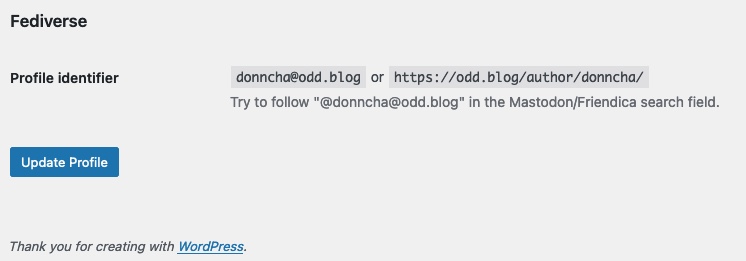
The installation instructions are unfortunately not great. After you install both plugins, go to your Profile page (Users->Profile) and scroll right to the end. Down there you will find your profile identifier. It will look like @author@hostname.tld. For this blog that is @donncha, and I have my photoblog at @donncha. Search for those on Mastodon and you will find my two blogs. Please feel free to follow!
When a post is made and shared on Mastodon, it allows others to reply. Those replies to the toot on Mastodon will be sent to your WordPress blog as a comment! That blew my mind when I discovered that!
Troubleshooting
I discovered that running the plugins on a multi-site WordPress install will cause problems. Instead of activating it on the root install, you need to activate it on each one. I presume that’s maybe because the rewrite rules are added on plugin activation, but that’s just a guess.
If you have caching you might want to turn it off, or at the very least disable caching in /.well-known/ as that’s where Mastodon and other services will query your server for updated information.
It can take 10 to 15 minutes before a new post is seen. Be patient!
Why not?
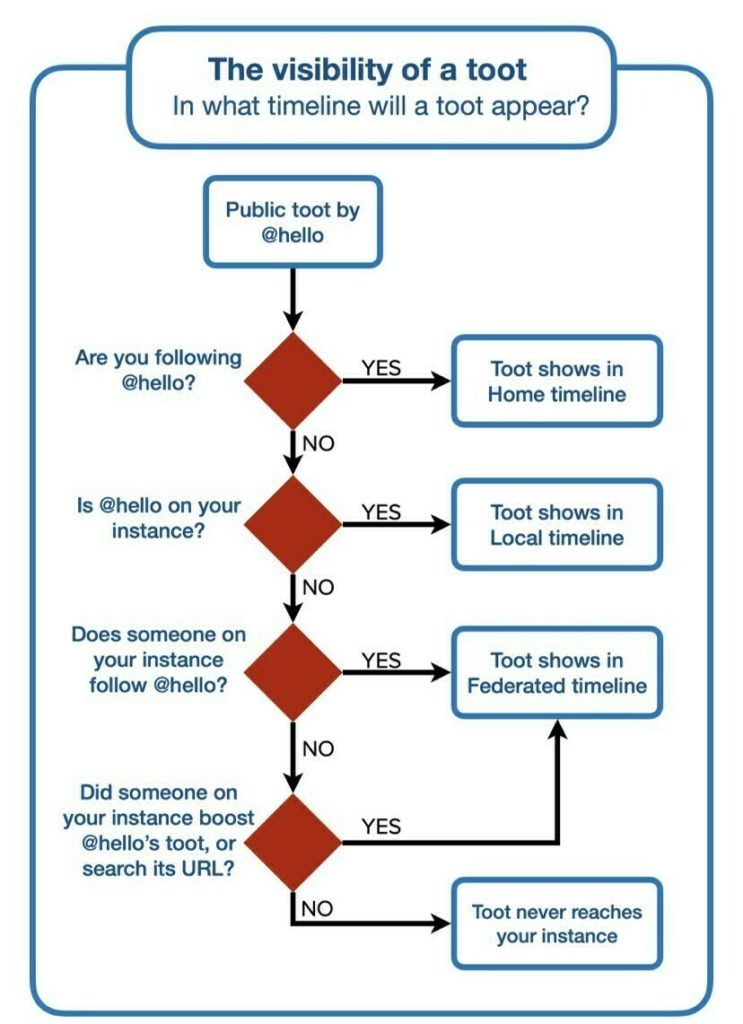
There’s one reason you might not want to do this. Your blog will be on a Fediverse instance by itself. Your blog posts will only show if someone is following it, or you boost the toots on Mastodon, or in the Federated feed. They won’t show in the Local Feed of your Mastodon instance. The best way around this is by careful use of relevant hashtags, but please don’t spam them, or you’ll be blocked.
Alternatives
You can hook your WordPress blog to your account too. I haven’t used them, but I saw two people use these plugins. Those posts will appear in the Local Feed of your Mastodon instance, which is a plus for discoverability.
You can also use IFTTT if your site can’t run plugins, and you have an RSS feed. Some details in this blog post. Thanks Sandy for that link!
I’m very excited about this. Is it too early to say that there’s enough momentum to sustain a #IrishMastodon community? I hope it succeeds.
Edit: George has a guide on his blog explaining how to do the same thing but points out that you need the WebMention plugin to receive replies as comments. I saw replies to my toots appear here as comments, but only if they were direct replies. If I replied to someone who replied to my blog that reply wouldn’t show as a comment, and I just tested that again and WebMention doesn’t change that, unfortunately.
Matthew Thomas has created a remote follow tool called apfollow, with source available. This creates a page where you can follow a Mastodon account by entering your own details in a box and it redirects you to your home server to do the follow. Here’s a link to follow my Mastodon.ie account. It fails for me, but maybe that’s something to do with mastodon.ie settings. I’ll fill out a bug report but it looks promising.
Close
Ad-blocker not detected
Consider installing a browser extension that blocks ads and other malicious scripts in your browser to protect your privacy and security. Here are a few options.
uBlock Origin is a free, open source, ad blocker for your browser.
Use pi-hole if you have a spare Raspberry Pi on your network.
Set the private DNS settings on your phone to dns.adguard.com to block adverts and trackers.