LrC: Sync Smart Collections with Adobe Cloud

Lightroom Classic (LrC) is fantastic for organizing large photo catalogs… but one longstanding limitation has frustrated many people: you cannot sync Smart Collections directly to Adobe’s cloud ecosystem (Lightroom CC for mobile/web). Only regular collections can be synced.

To work around this, plugins like Any Source have already implemented clever solutions but I wanted something that fit my own workflow better. That’s why I created the LrC Smart Collection Sync plugin to mirror smart collections into regular collections for syncing, with a few improvements I needed myself.

Lightroom Classic won’t let you sync Smart Collections directly, so:

  • This plugin automatically mirrors selected smart collections as regular collections.
  • Those mirror collections can then be synced through Lightroom Classic’s built-in sync to mobile/web/cloud.

The Any Source plugin does that too, but my plugin also:

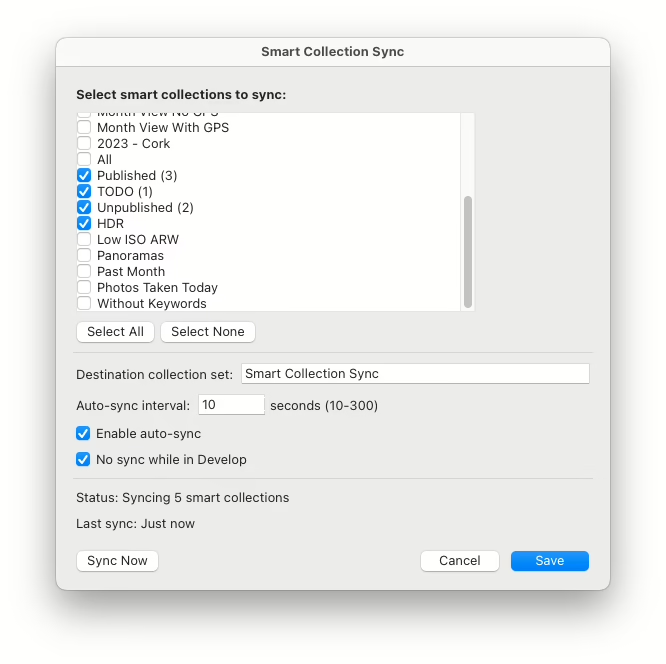
  • Lets you set the interval when background syncing occurs, from 10 seconds to 300. This is how often mirroring of smart collections with normal collections happens, not syncing with the Adobe Cloud.
  • Automatically pause sync while editing (so it doesn’t interrupt your workflow)

All this makes syncing smart collections more streamlined and controllable.

Back in 2020 I posted here about using Any Source, and I’ve been using it ever since, but I never used any of the other features of that fine software and I wondered if it would be difficult to write my own mirroring plugin with the help of Claude Code that is.

The result is a new, simpler plugin. It’s also open source if that matters to you.

Install

Installation is easy enough:

  • Clone or download the plugin by clicking on the CODE button and clicking the “Download ZIP” link.
  • Place lrc-smart-collection-sync.lrplugin in your Lightroom or Pictures directory.
  • Add it through File → Plug-in Manager in LrC.

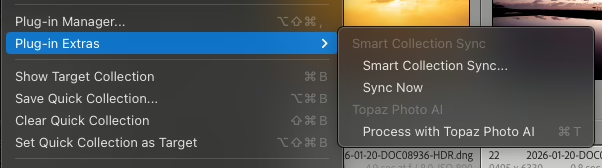
When enabled, it will add 2 new menus to Plug-in Extras:

  • Smart Collection Sync…
  • Sync Now

Usage

  • Go to File > Plug-in Extras > Smart Collection Sync…
  • Select the smart collections you want to mirror
  • Set your sync interval
  • Enable auto sync or run a manual sync

Check “No sync while in Develop” to disable syncing while you’re working on a photo. I noticed while editing photos that Any Source would sometimes sync, and the syncing action became part of the undo which was annoying.

Once the collections are created, tell LrC to sync them with the Adobe Cloud. You can now edit them in Lightroom.

This is the first release of the plugin. It seems to work ok for me. If it takes a while for the configuration window to appear, optimize your Lightroom Catalogue. That really helped me. I guarantee nothing except that this will take up space on your computer!

I don’t have any “new release” checks added but I’ll post here about major changes, or you can watch the GitHub repository to get updates.

PS. The Any Source plugin is really a great plugin with many more features. If you use Lightroom Classic you’ll probably find something in there that will be useful.


Creating a Shared Photo Library in Immich

If you’re using Immich to manage your photos, you may have discovered that sharing photos between users isn’t as straightforward as you’d like. Many users, particularly couples or families, want a shared folder where both parties can upload photos that are automatically visible to each other, complete with face recognition and smart search capabilities.

Boats in Crosshaven at sunset.

While Immich has shared albums, they don’t quite solve this problem. The photos don’t appear in search and aren’t processed for face recognition or analysis. What we really need is a true shared library where both users have full access to the same photos with all of Immich’s powerful features.

Here’s a solution using external libraries and symlinks that creates a pseudo-shared folder between Immich users.

The as yet new and unnamed bridge in Cork.

Important: If you rely on uploading photos through the Immich app on your phone this method won’t work for you. You’ll need to sync the photos some other way and copy them into an external library. I export my photos from Lightroom Classic on my laptop, and Syncthing syncs them to the Immich server. Everything is automated from the moment I publish them to the shared directory.

Fisherman's hut in Connemara.

This approach uses external libraries and symbolic links (symlinks) to create a shared photo directory that appears in both users’ Immich libraries. Each user uploads to their own “shared” directory, and through symlinks, those photos automatically appear in the other person’s library as well.

Requirements

  • Access to the Immich server’s file system (typically via SSH or direct access).
  • External libraries enabled for each user.
  • Basic familiarity with Linux commands.

Step-by-Step Setup

Let’s walk through this with an example using John and Mary, a couple who want to share their photos.

1. Set Up External Libraries

First, both users need to have external libraries configured in Immich. For this example, let’s say the external library on the server is this folder:

/mnt/external_library/

It will be mounted in Immich at /external_library/ in this example.

Create a directory structure like this:

/mnt/external_library/
├── john/
│   └── shared/
└── mary/
    └── shared/

2. Configure the External Libraries in Immich

In Immich’s admin web interface:

  • For John, add an external library pointing to /external_library/john
  • For Mary, add an external library pointing to /external_library/mary

3. Create the Symlinks

This is where the magic happens. We’ll create symbolic links that connect each person’s shared directory to the other person’s external library.

Log in to the Immich server and run these commands:

cd /mnt/external_library/john/
ln -s ../mary/shared mary_files
cd ../mary
ln -s ../john/shared john_files

4. Upload and Scan

Now when John uploads photos to /mnt/external_library/john/shared/, they will:

  • Appear in his own Immich library
  • Automatically appear in Mary’s library (via the symlink at /mnt/external_library/mary/john_files)

The same works in reverse for Mary’s uploads.

After uploading, trigger a scan of the external libraries in Immich, and both users will see the shared photos.

A red deer digs up grass during the rutting in Killarney.

How It Works

A symbolic link is like a shortcut that points to another location in the filesystem. When Mary’s Immich library scans /external_library/mary/, it finds the john_files symlink and follows it to John’s actual shared directory. From Immich’s perspective, it looks like Mary has those photos in her library, but they’re actually stored in John’s directory.

Advantages

  • Full Immich functionality: Both users get face recognition, smart search, and all other Immich features on the shared photos
  • Simple uploads: Just upload to your own shared directory—no manual copying needed
  • Bidirectional sharing: Both users can add photos that the other will see
  • Single source of truth: Each photo is stored once (by the person who uploaded it)

Disadvantages

  • Duplicate processing: Immich will process each shared photo twice—once for each user. This means:
    • Face recognition runs twice.
    • Smart search/ML classification runs twice.
    • More CPU and storage usage for thumbnails and metadata.
  • File ownership: Photos remain in the uploader’s directory. If John deletes his Immich library or account, Mary loses access to his photos.
  • Requires server access: You need command-line access to the server to set up symlinks.

Important Notes

  • Upload directly to external libraries: Don’t upload to your main Immich library through the app. Upload directly to the shared directory in your external library.
  • Backup strategy: Make sure your backup solution covers the external library directories.
  • Permissions: Ensure that the Immich container has proper read permissions for all directories involved.
A man in a black coat and cap looks to the side in front of a "SALE" sign with people on the sign.
A young girl sits on the wall nearby.

Conclusion

While this solution requires some technical setup and comes with the overhead of duplicate processing, it provides a practical way to share photos between Immich users with full functionality. This approach has proven reliable for my wife and me, who wanted a shared family photo library without waiting for native multi-user library support in Immich.

If you’re comfortable with the command line and the tradeoff of duplicate processing, this solution provides the shared photo experience many users are looking for.

The Bohemian Rhapsody Trailer in Lego

It’s hard to believe the Bohemian Rhapsody movie is 7 years old. It’s a music documentary about a band that plays the music of Queen, charting their rise from unknowns to playing sold-out gigs, just like the real Queen band.

Anyway, that’s enough of a commentary about what a fantasy the movie was. The trailer was pretty good and Brickfilm Day did an outstanding reproduction of it. This post has been sitting in my drafts folder since 2018, so it’s about time I published it. I’m impressed all the videos are still live after 7 years.

Here is the original trailer. I love what they did for their Live Aid appearance.

Then the LEGOversion of the trailer.

And now side by side. Impressive isn’t it?

Borg-ui and Vorta are nice BorgBackup frontends

I’ve been using Borgmatic, a Python frontend to BorgBackup, to handle backups of my photo archive.

For a few months I had trusted macOS Time Machine to do that job, but somehow, the APFS container or something got corrupted, and I had to format a 12TB external drive to fix it. Time Machine was interrupted while making a backup and corrupted an index irreparibly. We have occasional power cuts so I did not want that to happen again.

So, back to BorgBackup. I had used it before but I wasn’t happy with how I had it configured. I don’t remember what it was now, because the reasons are lost in the mists of time. I decided to look into Borgmatic to help run BorgBackup and it made configuring it fairly easy.

Borgmatic is a configuration-based tool, so you create a .yml file defining the directories to backup, where the backup repo lives, and then run it whenever you want to create a new backup. I have it running once a day because my photo library doesn’t change that often.

Browsing BorgBackup repositories was a weak point of the system, but there are two good options:

I tried Vorta before, but you need to mount the repository to browse it, and I didn’t want to go down the route of installing a macFUSE kernel mod. However, I see from their website some promising news:

Thanks to the new FSKit backend in macFUSE, supported file systems can now run entirely in user space on macOS 26. That means no more rebooting into recovery mode to enable support for the macFUSE kernel extension. Installation is faster and setup becomes a seamless experience.

If you’re only extracting backups, you can safely ignore the popup that demands you give Vorta full-disk access.

I noticed that the Vorta app behaves like a popup window on macOS. It’s not possible to CMD-TAB to it, and it has no menu system in the top admin bar. It’s not even in the Dock. You’ll have to run it from Spotlight/Alfred/Raycast and it will be shown.

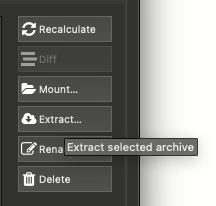
From the Archives tab, it is possible to “Extract…” from a repository that doesn’t require mounting of the backup and that does work. If you have a large repository you may see the infamous spinning colour ball if you’re using a Mac as it gets all the file info. Give it time. It may take more than a minute to show you a file listing.

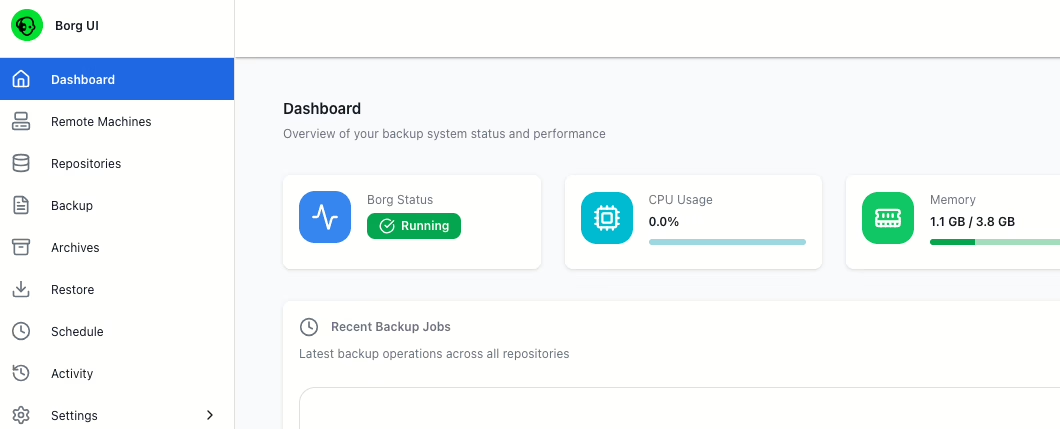
I’m also investigating a web-based borg-ui that runs in a Docker container. That allows me to restrict access only to the directories I want to back up or restore, or as I have configured it now, it only has access to the backup repositories and a restore directory. I don’t need to restore files very often so I can shut down the container and only launch it when I need to.

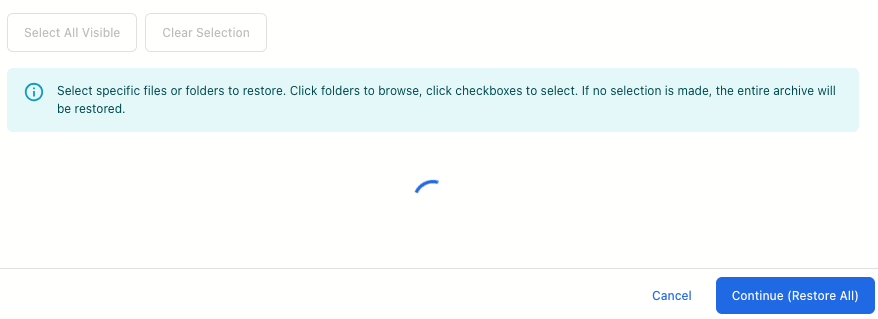
Browsing or extracting files using Borg-ui is just as slow as in Vorta, but it has a spinning animation in a modal popup to stop you from trying to restore twice.

If you’re not familiar with Docker, give Vorta a go, but borg-ui is definitely worth a look too. Don’t depend on either of them to do your backups. That should be automated so you don’t need to remember to do it.

You should of course have a remote backup, and for that I recommend Backblaze. I’ve been using them for years. Thankfully I’ve hardly ever had to restore more than a few files from them but I check it semi-regularly. Sign up through here and I’ll get a free month if you pay for it!